Acta Agent BuilderAI agents that do the work your meetings create
Every meeting leaves work behind: follow-ups, updates, tickets, reminders, risks to act on. Build an agent once, in plain words, and it does that work every time, using what Acta already knows from your meetings.
- No code
- You approve before it sends
- Tests send nothing
Why it matters
Notes don't move work. Agents do.
Acta already captures what was said and agreed. Agent Builder closes the gap between "we agreed" and "it's done", without anyone copying notes into five different tools.
| After the meeting | Without agents | With Acta agents |
|---|---|---|
| Follow-up to the customer | Written by hand, often days later | Drafted minutes after the call; you approve and it sends |
| CRM and tickets | Copied from notes into HubSpot and Jira | Updated from the meeting, with the right owner |
| Action items | Forgotten until someone asks | Owners reminded on the due date, overdue ones flagged |
| Risks said out loud | Lost in the transcript | Spotted, checked against the account, sent to the owner |
| Weekly updates | Someone compiles them on Friday | Written from the week's meetings and posted on schedule |
| Decisions | Made, then nobody checks they happened | Logged and followed up until they're done |
| Pre-meeting prep | Scrolling old notes five minutes before the call | A brief before every external meeting: who they are and what was said before |
| Promises to customers | Remembered by whoever was on the call | Tracked, and the owner is reminded before the date |
What it does for each team
Sales
Every call ends with the follow-up, the CRM note and the next meeting booked, so deals keep moving.
Agents: Sales call follow-up, Pre-call brief, Deal update
Customer Success
Churn signals and promises from calls turn into alerts and tasks before the renewal is at risk.
Agents: Renewal at risk, QBR recap, Overdue nudge
Product & Engineering
Feature requests and bugs mentioned in calls become tickets, in the customer's own words.
Agents: Ticket creator, Feedback digest
Support
New tickets are sorted and get a drafted reply from your docs, checked by a person before it goes.
Agents: Support ticket triage, Email triage
Leadership
A one-page view of the week's decisions, risks and stalled work, without asking anyone for it.
Agents: Weekly CEO digest, Decision log
Hiring & People
Interviews become scorecards for the hiring team, and onboarding steps happen on time.
Agents: Interview scorecard, Onboarding
How it works
From an idea to a running agent in four steps
- 1
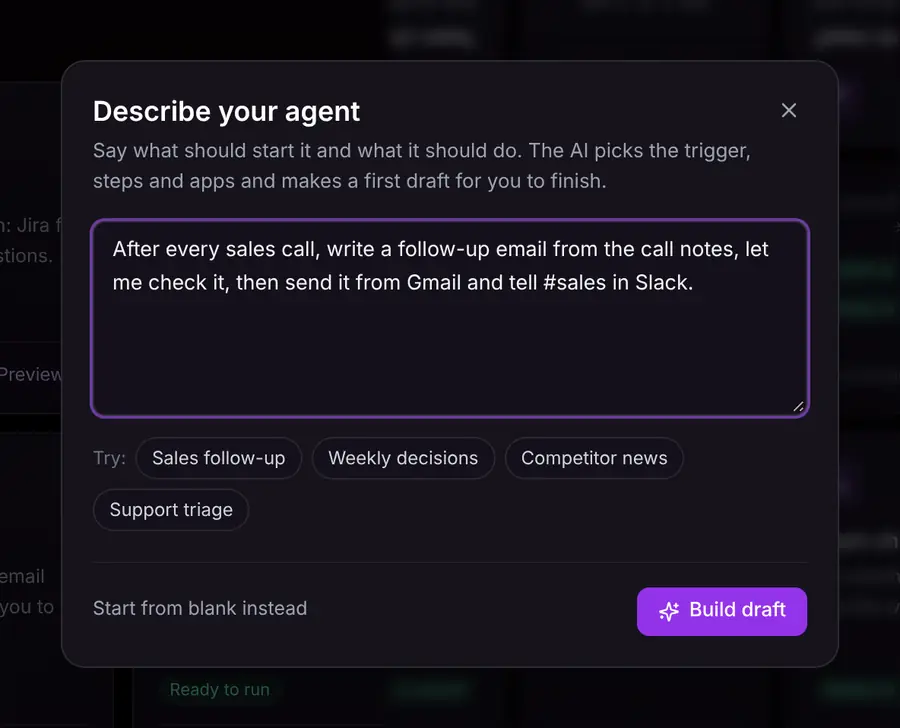
Describe it, or pick one
Write one sentence about what should start the agent and what it should do. The AI picks the trigger, the steps and the apps, and makes a first draft. Or start from a Prebuilt Agent.
A to-do list shows what's left to fill in.
- 2
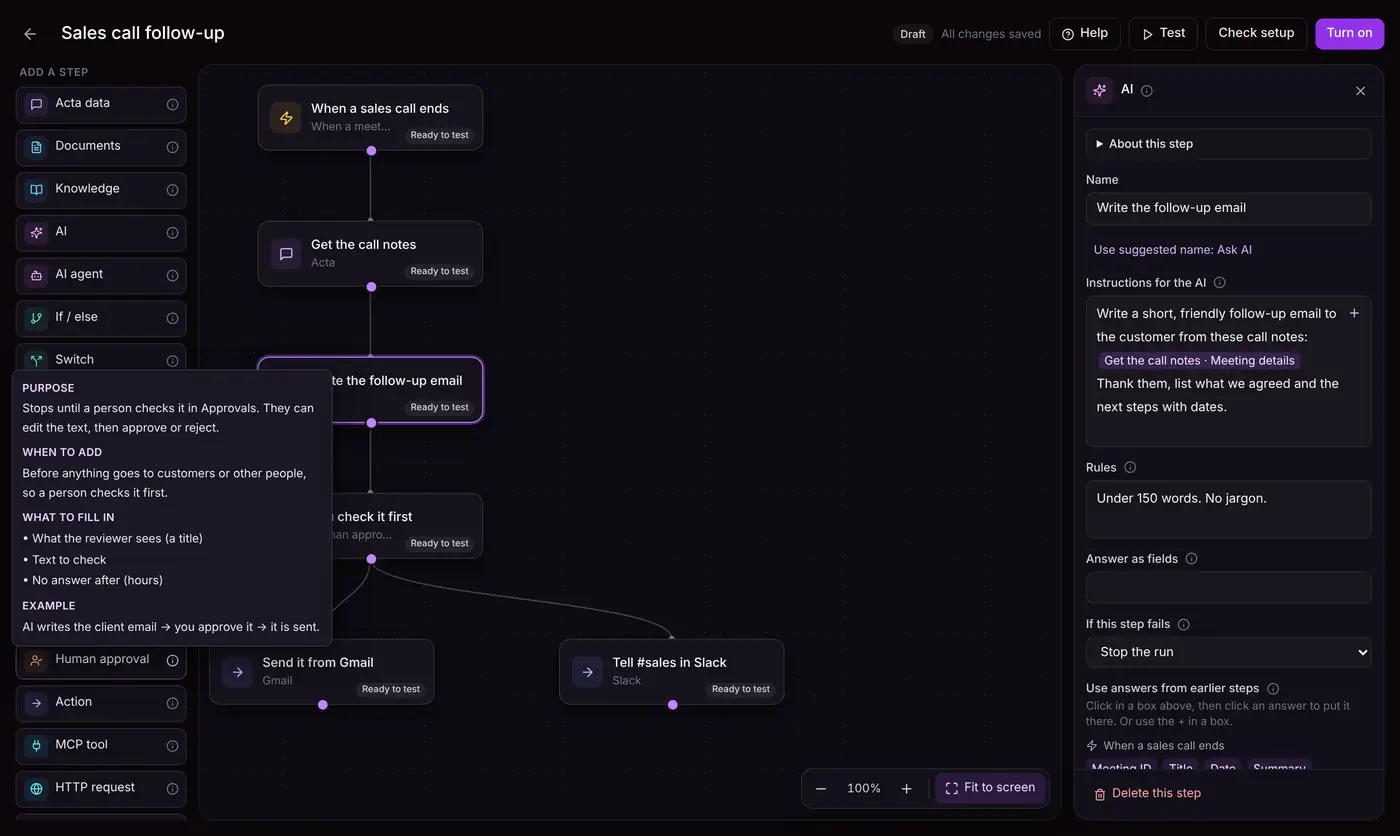
Shape it on the canvas
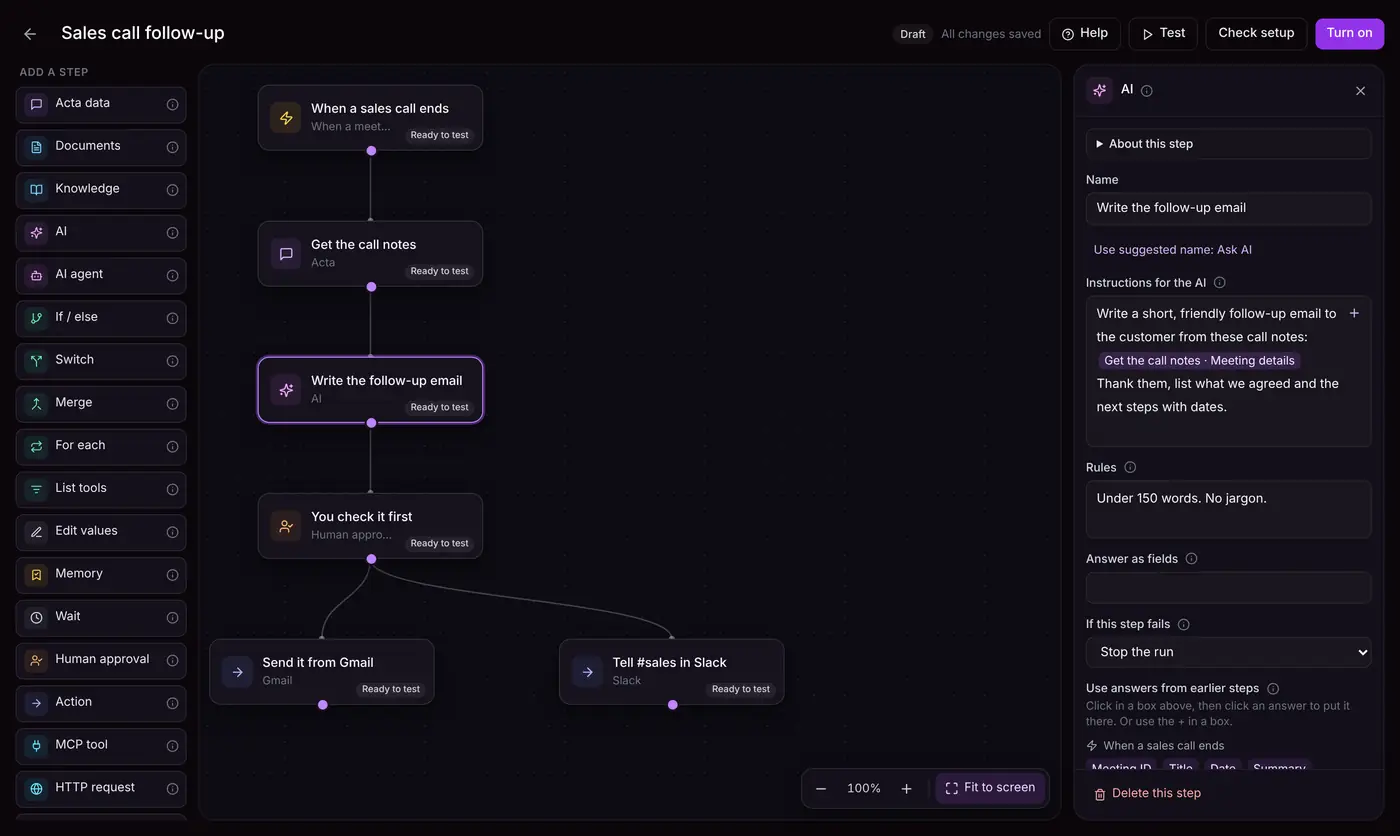
Steps sit on a canvas, connected top to bottom. Click a step to set it up, and drop in answers from earlier steps with one click. Hover any step to see its purpose, when to add it and an example.
Check setup lists anything missing, with a button that fixes it.
- 3
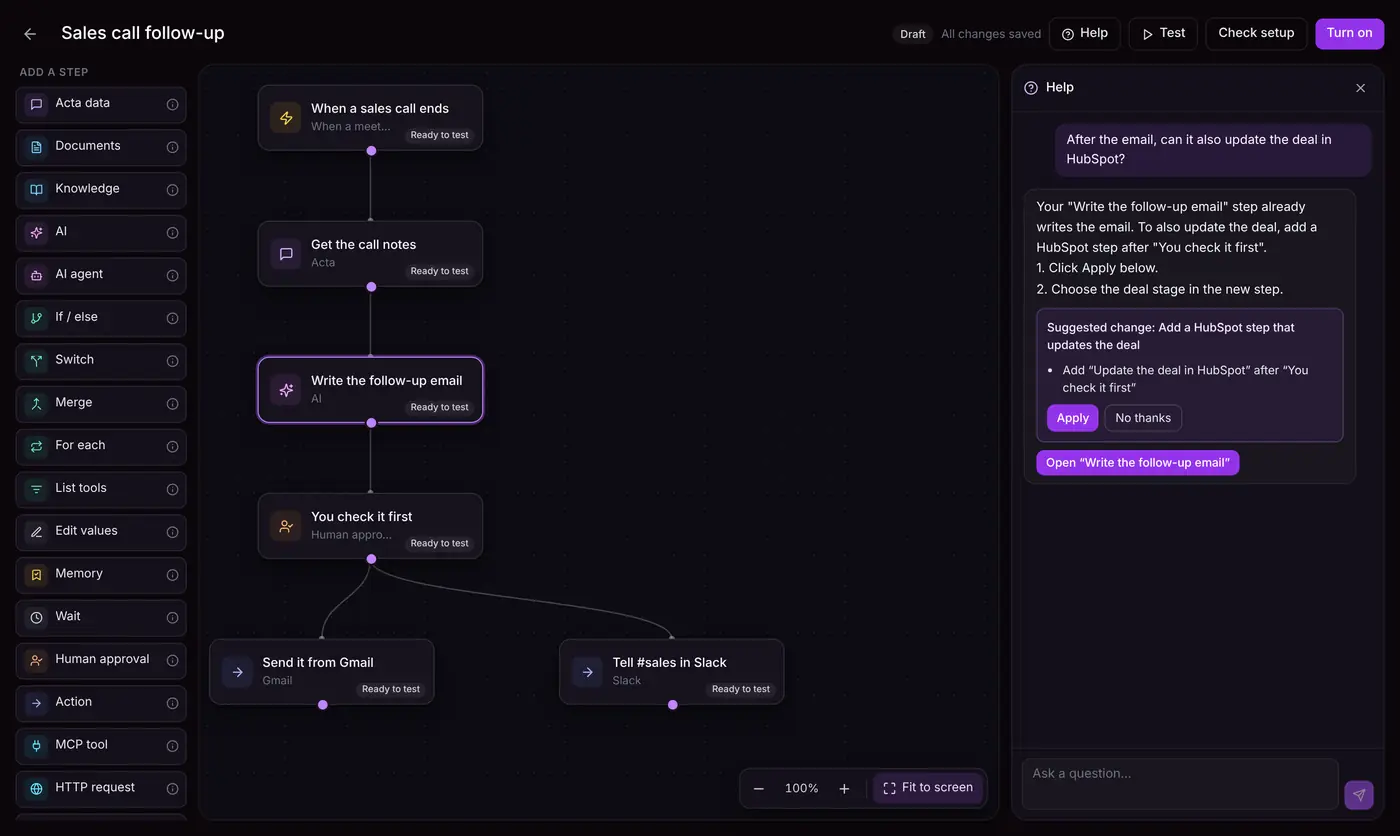
Ask Help when you're stuck
Help knows your agent, your connected apps and your last test. Ask why something failed or how to do something; it answers in simple steps and can make the change for you, with Apply and Undo.
Nothing changes until you click Apply.
- 4
Test, then turn it on
A test runs every step with real data and shows what it would send, without sending anything. When it looks right, turn it on: it runs every time its trigger happens.
History shows every run; a failed one says what to do next.
Inside an agent
A trigger, then steps
Something starts the agent. Then each step does one thing and hands its answer to the next. Every step explains itself, in plain words.
What can start an agent
- You run it
- A meeting ends
- Before a meeting
- On a schedule
- Template result ready
- Action item overdue
- Decision made
- New Slack message
- New ticket (Zendesk, Freshdesk)
- New row (Google Sheets)
- New post in a feed
- A form or webhook
- Another agent
Find
Get the facts
- Acta data: meetings, action items, decisions
- Documents: your files
- Knowledge: web, pages, Jira
Think
Write and decide
- AI: write, sum up, sort
- AI agent: picks its own tools
Decide
Shape the flow
- If / else, Switch, Merge
- For each, List tools
- Edit values, Memory
People
Keep a human in
- Human approval (in Acta or by email)
- Wait
Act
Do it in your apps
- Action: email, Slack, CRM, tickets…
- Drafts to copy
- HTTP request, MCP tool
- Run another agent
Works with your tools
Connect each app once with your own sign-in. For anything else: a web API, an MCP server, or Zapier and Make.
- Gmail
- Google Calendar
- Google Sheets
- Slack
- HubSpot
- Salesforce
- Zoho
- Jira
- Asana
- Zendesk
- Freshdesk
- Zapier
- Make
- Webhooks
- Any web API
- MCP servers
One agent, start to finish
Renewal at risk
On a quarterly review, the customer says: “Honestly, we're looking at other tools before renewal.” Here's what the agent does next, by itself.
STEP 1 · TRIGGER
When a customer call ends
Gets the meeting: title, people, summary.
STEP 2 · AI
Spot churn signals
Finds “looking at other tools” and rates the risk: High.
STEP 3 · IF / ELSE
If the risk is high
Yes, so it carries on. Low risks stop here.
STEP 4 · ACTION
Check the account in HubSpot
Renews in 34 days, $48,000 a year, owner Priya.
STEP 5 · AI
Write a save plan
Three concrete next steps from the call and the account.
STEP 6 · ACTION
Alert the owner and create tasks
Slack message to #cs-alerts, tasks in Asana, deal marked at risk.
Result: the account owner knows within minutes, with a plan, instead of finding out at renewal.
Built in, so agents keep working
Your meeting memory
Every agent can use Acta's summaries, action items, decisions, risks and template reports.
Help, inside the editor
Answers questions about your agent and suggests fixes you can apply.
Check setup
Finds what's missing before you turn it on, with a button for each fix.
A guide on every step
Purpose, when to add it, what to fill in, and an example.
Safe tests
Run the whole agent on real data; nothing is sent or changed.
Approvals by email
Approve or reject from your inbox, even on your phone.
Run history
What each step did, and for a failed run, what to do next.
Memory
The agent remembers what it already handled, so it never does it twice.
41 Prebuilt Agents
Start from one, change anything, turn it on.
- Customer Success
Renewal at risk
Churn signals from calls, checked against the account, sent to the owner with a plan.
Meeting ends → AI → If → HubSpot → Slack + Asana
- Sales
Sales call follow-up
The follow-up email and CRM note after every sales call.
Meeting ends → AI → approval → Gmail + HubSpot
- Product
Ticket creator
Bugs and requests from calls become Jira tickets, in the customer's words.
Template result → For each → Jira
- Leadership
Weekly CEO digest
Every Friday: decisions, risks and stalled work on one page.
Schedule → Acta data → AI → email
- Support
Support ticket triage
Sorts each new ticket and drafts a reply from your docs.
New ticket → AI → Documents → approval
- Operations
Overdue nudge
A friendly reminder to the owner when an action item goes overdue.
Action item overdue → AI → Slack
- Sales
Pre-call brief
Before each external meeting: who they are and what was said before.
Before a meeting → Acta data → AI → email
- Hiring
Interview scorecard
Each interview turned into a scorecard for the hiring team.
Meeting ends → AI → Google Sheets
You stay in control
Agents work for you, never around you.
- Add an approval step: you check and edit before anything goes out
- Agents use your own sign-ins, only in apps you connect
- API keys and sign-ins are stored encrypted
- Tests never send or change anything
- Every run is recorded, step by step
- Turn an agent off at any time
Agent Builder FAQ
Everything people ask about building and running agents.
Getting started
What is an agent?
A trigger and a few steps that run by themselves. Something starts it, like a meeting ending, and the steps do the work, like writing a follow-up and updating the CRM.
Do I need to code?
No. Describe the agent in a sentence or start from a Prebuilt Agent. Every step explains itself in plain words, and Help answers questions as you build.
How do I make my first agent?
Go to Agent Builder and click New agent. Describe what it should do and click Build draft, or pick one of the 41 Prebuilt Agents. Fill in what the to-do list asks for, press Test, then Turn on.
What are Prebuilt Agents?
Ready-made agents for sales, customer success, support, product, hiring, leadership and more. Use one as it is, or change any step.
Building agents
What can start an agent?
You (Run now), a schedule, a meeting ending or about to start, a template result being ready, an action item going overdue, a decision being made, a new Slack message, a new support ticket, a new row in a sheet, a new post in a feed, a form or webhook, or another agent.
Which steps can I use?
Acta data, Documents, Knowledge, AI, AI agent, If / else, Switch, Merge, For each, List tools, Edit values, Memory, Wait, Human approval, Action, Drafts to copy, HTTP request, MCP tool and Run another agent. Hover any step for its purpose, when to add it and an example.
How does a step use what an earlier step found?
Click + in a setting and pick an answer from an earlier step, like the meeting's summary or the AI's text. It is filled in fresh every time the agent runs.
What's the difference between the AI step and the AI agent step?
The AI step does one job you describe: write, sum up, sort or pull out details. The AI agent picks its own tools and uses them several times, for jobs whose steps can't be planned ahead.
Can an agent handle many items, like every action item?
Yes. For each repeats steps for every item in a list (up to 100 per run). List tools can first keep only the items that matter.
Can agents work together?
Yes. Run another agent starts one of your other agents and hands it values, so you can split a big job into smaller agents.
Apps and connections
Which apps can it use?
Gmail, Google Calendar, Google Sheets, Slack, HubSpot, Salesforce, Zoho, Jira, Asana, Zendesk and Freshdesk. For anything else: HTTP request for any web API, MCP servers, or Zapier and Make by webhook.
How do I connect an app?
In Agent Builder → Connectors, click Connect and sign in once. Jira, HubSpot and Salesforce use the connection on Acta's Integrations page.
Whose account does the agent use?
Yours. Agents act with your own sign-ins, so an email is sent from your Gmail and a ticket is created as you.
What is an MCP server?
A way for other apps to offer tools to AI. Add a server's address and API key in Connectors → MCP servers, and use its tools with the MCP tool step.
Testing and running
How do I test an agent safely?
Press Test. Every step runs on real data and shows what it would send, but nothing is sent or changed. You can also send a test to yourself.
What does Turn on do?
The agent runs by itself every time its trigger happens. Changes you make later need Update to go live.
What if a run fails?
History shows every run step by step. A failed run says what went wrong and what to do next, often with a button that fixes it.
Can I stop an agent?
Yes. Turn it off at any time; it stops running and keeps its history.
How do I approve before something is sent?
Add a Human approval step. You get it in Approvals and by email, can edit the text, and approve or reject from your phone.
Data and safety
Is my data safe?
Agents only use apps you connect, with your own sign-ins. Sign-ins and API keys are stored encrypted, and every run is recorded.
Will an agent send things without me?
Only if you build it that way. Add Human approval before anything goes to other people.
Does it use my meeting data?
Yes, that's the point: steps can read your meetings' summaries, action items, decisions and risks. Only your own meetings, and only when a step asks for them.
Can it do the same thing twice by mistake?
Use the Memory step to remember what the agent already handled, like who already got a welcome email.
Help and plans
I'm stuck. Where do I get help?
Click Help in the editor: it knows your agent, your connections and your last test, and can suggest a change you apply with one click. You can also send the question to our support team from there.
Is Agent Builder part of my plan?
Agent Builder is part of Acta's paid plans. See Pricing for what each plan includes.
How is this different from Zapier or Make?
Acta's agents start from your meetings: they already know what was said, decided and promised. Zapier and Make move data between apps, and you can still connect them to an agent.
Still stuck? Open Help inside the editor, or read the Agent Builder guides in the Help Center.
Your next meeting can finish its own work.
Describe an agent, or start from one of 41.