Record meetings with the Acta desktop app for Windows and Mac
The Acta desktop app records meetings from your own computer, with no bot in the call, or sends the Acta bot when you prefer. It notices Zoom and Microsoft Teams meetings by itself, and it can record any other calling app too. Your screen is never recorded. Meetings in Chrome can also be recorded with the Chrome extension.
Set it up
- 1Download Acta for Windows or Mac from acta.ai/desktop and install it. Mac: drag Acta into Applications. Windows: if "Windows protected your PC" appears, click More info, then Run anyway.
- 2Open Acta and click Sign in (or Create account). Acta stays signed in.
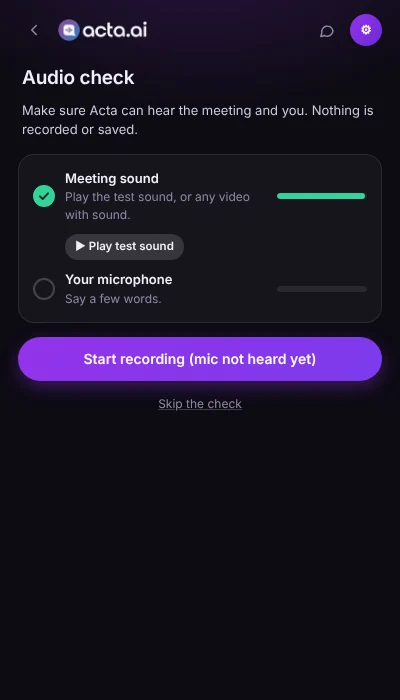
- 3Run the audio check: play the test sound and say a few words, so Acta hears the meeting and you. Mac: allow Microphone and System Audio Recording Only when asked (System Settings → Privacy & Security → Screen & System Audio Recording). Acta never asks to record your screen. Windows: make sure "Let desktop apps access your microphone" is on.
- 4Optional: in Settings, turn on Launch at startup, so Acta is always ready to notice your meetings.
Record a meeting on this device
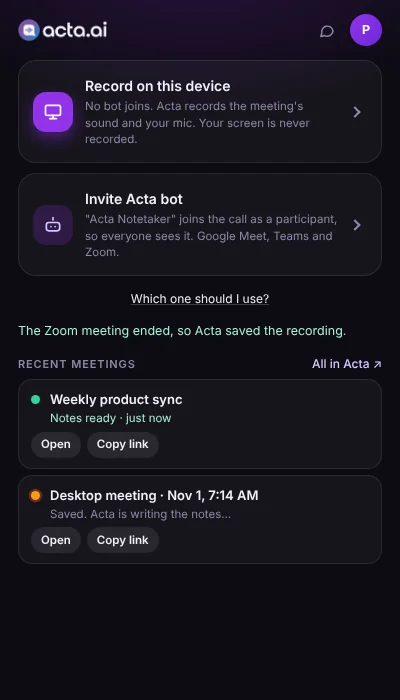
- 1Join your meeting in the Zoom or Microsoft Teams app (Teams free too). Acta opens by itself and asks: Record on this device, Invite Acta bot or dismiss. With Record detected meetings automatically on, it starts recording straight away.
- 2For any other calling app (Webex, Slack huddles, WhatsApp, Google Meet in a browser), open Acta, click Record on this device, then Start recording. Acta finds the meeting app and the meeting's name by itself.
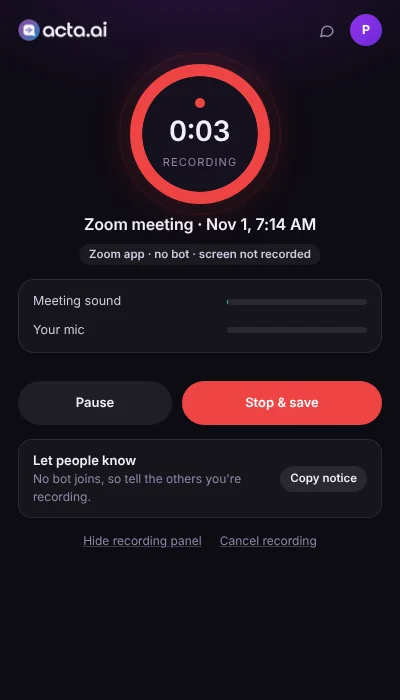
- 3While recording, the Meeting sound and Your mic meters move as people talk. The small recording panel stays on top of your meeting with the timer, Pause and stop. Click Copy notice to tell the others you're recording.
- 4End the meeting. A Zoom meeting stops and saves by itself; for Teams, Acta asks "Did your Teams call end?". You can always click Stop & save.
- 5Under Recent meetings the meeting shows Saved, then Notes ready. Click Open for the summary, action items and transcript, or Copy link.
Send the Acta bot instead
- 1Copy the meeting's join link (Zoom: Invite → Copy invite link; Teams: Meeting info → Copy link).
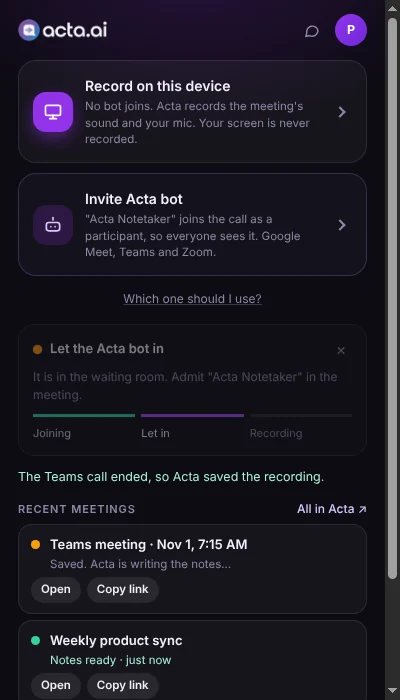
- 2In Acta, click Invite Acta bot. The link fills in by itself; the meeting's name too, from a Zoom invite, your calendar or the Teams window.
- 3Click Send the Acta bot and follow its status: Joining, Let in, Recording. Admit "Acta Notetaker" in the meeting.
Never recorded twice
When the Acta bot is in a meeting, the desktop app doesn't also record it on your computer.
What it records
- The meeting's sound (everything you hear through the computer) and your microphone. Never your screen. Pause music or videos while recording.
- The meeting is named after the Teams meeting window (Windows) or your calendar meeting; otherwise "Zoom meeting", "Teams meeting" or "Desktop meeting" with the date.
- Speaker names: your voice is marked as you; the other voices are named from the conversation and your calendar invite. The Acta bot names speakers from the participant list, which is more exact.
- Recordings are kept on your computer until they reach Acta. Offline, they wait and upload by themselves when you're back online.
Settings
| Setting | What it does |
|---|---|
| Ask me when a Zoom or Teams meeting starts | Shows the prompt: Record on this device, Invite Acta bot or dismiss. |
| Record detected meetings automatically | Records detected Zoom and Teams meetings on this device straight away, with the recording panel shown. |
| Remind me 1 minute before | A minute before a calendar meeting, offers to record it or send the bot. |
| Record them on this device automatically | Records the calendar meetings you tick, as they start. |
| Send the Acta bot to my calendar meetings | The same setting as in Acta: the bot joins your calendar meetings. |
| Launch at startup | Starts Acta with your computer, so it's ready for every meeting. |
Free trial
The desktop app is included in your Acta plan. When the free trial ends, Acta shows Upgrade instead of recording.
Troubleshooting
Acta didn't notice my meeting
Acta notices meetings only while it's running (in the menu bar or system tray), and only in the Zoom and Teams apps, not in a browser. Turn on Launch at startup. If it still doesn't, open Settings → Check detection, click Copy report and send it to support@acta.ai.
The Meeting sound meter doesn't move
Make sure the meeting plays through your usual speaker or headset. On a Mac, allow "System Audio Recording Only" for Acta in System Settings → Privacy & Security, then run the audio check again from Settings.
A recording says "Waiting to upload"
It's safe on your computer and Acta keeps trying. The reason is shown under it. Once Acta is reachable, it uploads by itself and then shows Notes ready.
Windows says "Windows protected your PC"
Windows shows this for new apps it doesn't know yet. Click More info, then Run anyway.
Related
- Download the Acta desktop app for Windows and Mac
- Record a Zoom meeting without a bot
- Record Teams meetings without a bot