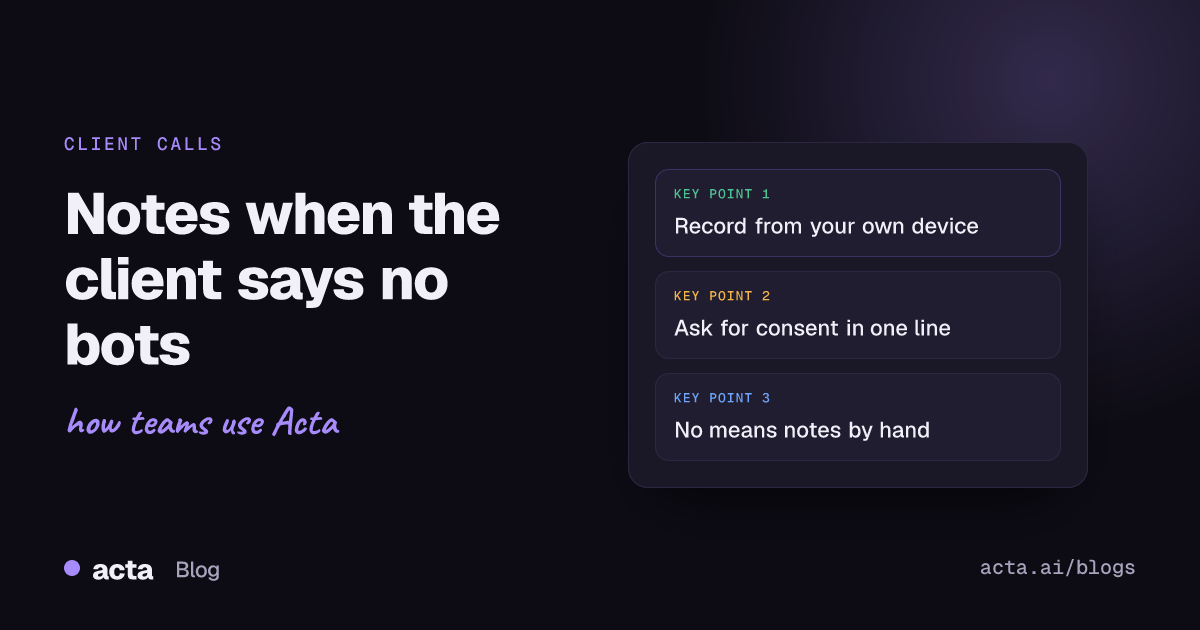
Quick answer: If you need an AI notetaker when bots are not allowed, record from your own device instead. The Acta desktop app records Zoom, Teams and other calls on Windows or Mac, and the Chrome extension records Google Meet, Teams in the browser and the Zoom web client. No bot joins. Ask for consent first, and if they say no, take notes by hand.
Here's a Monday that happens more than people admit. A consultant (call her Priya) starts with a new client whose security team has a one-line policy: no third-party participants in meetings. Her notetaker bot sits in the Teams lobby for the whole kickoff, nobody lets it in, and she spends the evening rebuilding forty minutes of requirements from memory and a half-page of scribbles.
She isn't doing anything wrong. The client wasn't either. Their meeting, their rules. The fix isn't to argue with the policy; it's to stop bringing a participant to meetings that don't want one. This post is for consultants, sales reps and recruiters who spend most of their week on other people's calls, and who still want an AI notetaker when bots are not allowed: a way to record client calls, with consent, and get notes and action items at the end.
Why do clients refuse meeting bots?
Usually it's one of three things, and none of them is personal.
- A blanket policy. Security or legal decided that unknown participants don't join meetings, full stop. The person you're talking to may not even know the policy exists until the bot shows up.
- The lobby. In Teams, external people often wait in the lobby until the organizer or a presenter admits them. Microsoft's guide to using the lobby in Teams meetings shows the check mark to admit and the X to deny (as of November 2026). In Google Meet, the Quick access setting decides whether people outside the invite have to ask to join. A busy host simply ignores the request.
- It feels odd. A first call with a candidate or a prospect, and a robot appears in the participant list before anyone has said hello. Some people just say no.
We wrote a longer piece on why companies block meeting bots. The short version: you can't control their meeting settings, so don't plan around them.
Native recording often isn't an answer either. If you're a guest in a client's Teams meeting, Microsoft's page on starting and finding Teams meeting recordings says guests can't record meetings, and recording depends on the organizer's license and admin policy (as of November 2026).
How does an AI notetaker work when bots are not allowed?
It records from your side of the call. Instead of joining as a participant, the notetaker captures what you hear and what you say on your own computer. Nothing appears in the participant list, so there's nothing for a lobby to hold or a policy to block.
Acta does this two ways:
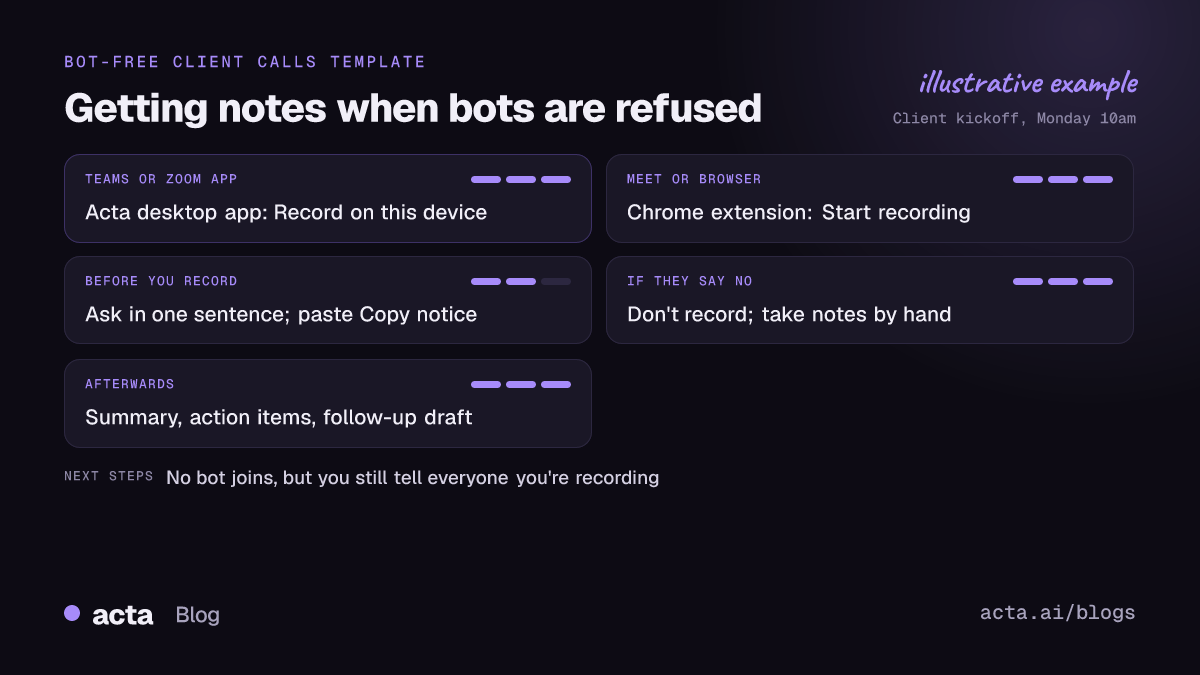
- The Acta desktop app for Windows 10 (1903 or later), Windows 11 and macOS 14.2 or later. It notices meetings in the Zoom and Microsoft Teams desktop apps by itself, and records any other calling app, like Webex or Slack huddles, when you press record. It records the meeting's sound and your microphone, never the screen.
- The Acta Chrome extension, for Google Meet, Microsoft Teams in the browser and the Zoom web client. You start it from the toolbar icon or with Alt+Shift+R.
After the call you get the same notes as you would from a bot: a transcript with speakers, a summary, action items with owners, decisions and a follow-up email draft. The notes are usually ready a few minutes after the call ends.
One honest limit: because it records from your device, you have to be in the meeting. A bot can attend for you. A bot-free recorder can't.
Which one should you install for client calls?
Look at where your clients' meetings actually happen.
Mostly Teams or Zoom, in the apps
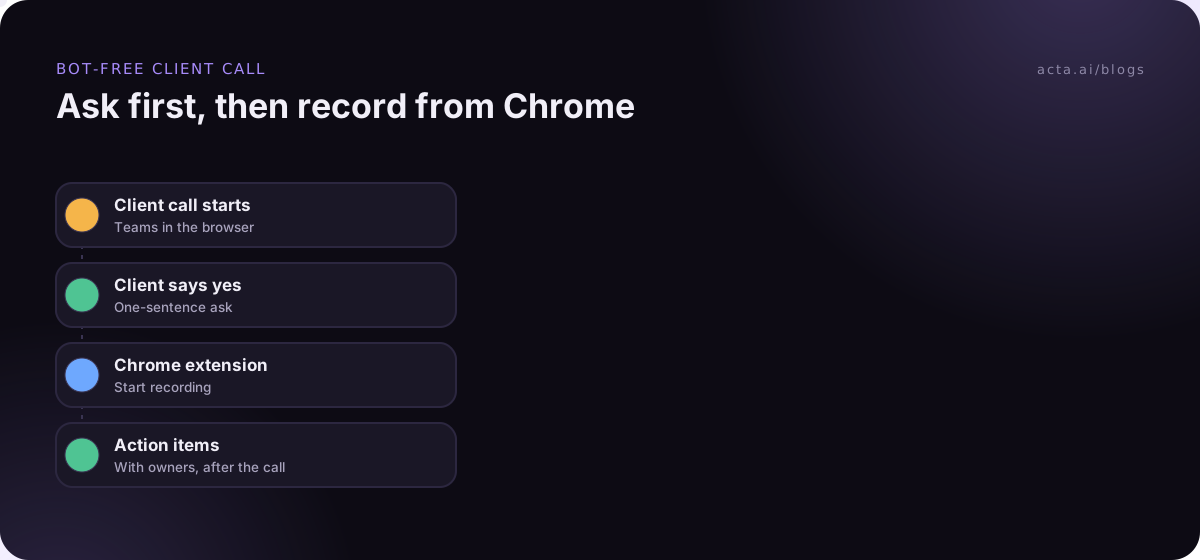
Install the desktop app. When you join in the Zoom or Teams app, Acta opens by itself and asks whether to Record on this device, Invite Acta bot or dismiss. On calls where bots are off the table, pick the first one. A small panel sits on top of the meeting with the timer, Pause and stop.
First-time setup takes a few minutes. On a Mac you allow Microphone and System Audio Recording Only. On Windows, "Let desktop apps access your microphone" must be on, and because the installer isn't code-signed yet, Windows may show "Windows protected your PC": click More info, then Run anyway. Do this on a quiet afternoon, not in the five minutes before a client call.
Mostly Google Meet, or clients who send browser links
Install the extension from the Chrome Web Store. It needs Chrome 116 or newer. Log in once, pin the icon, and in the meeting press Start recording. The first time, Acta asks for microphone access - click Allow. It saves by itself when you leave or the host ends the meeting. The Chrome extension guide has screenshots.
A mix of everything
Install both. They're included in every Acta plan, and both work during the 15-day free trial.
How do you ask for consent in one sentence?
Bot-free does not mean secret. Tell people you're recording and get consent where the law requires it. With no bot in the list, nobody gets a visual cue, so the asking is on you. One plain sentence at the start almost always does it.
The version I'd use:
"Before we start, is it okay if I record this so I can listen properly instead of typing? I'll send you the action items afterwards."
It works because it says what you're doing, why, and what they get out of it. Some role-specific versions:
- Consultants: "I record our working sessions so nothing you tell me gets lost between now and the proposal. Okay with you?"
- Sales reps: "Mind if I record? It means I won't come back next week asking you to repeat your requirements."
- Recruiters: "I'd like to record this interview for my notes, so I can focus on you rather than my keyboard. Is that alright?" Acta's own advice for hiring is to let candidates know and follow your local rules on recording and data.
Then put it in writing. The desktop app has a Copy notice button that gives you a short recording notice to paste into the meeting chat. Thirty seconds, and there's a record that you asked. For what the law expects in different places, read our guide on recording meetings with AI, consent and what to tell participants.
What should you do if the client says no?
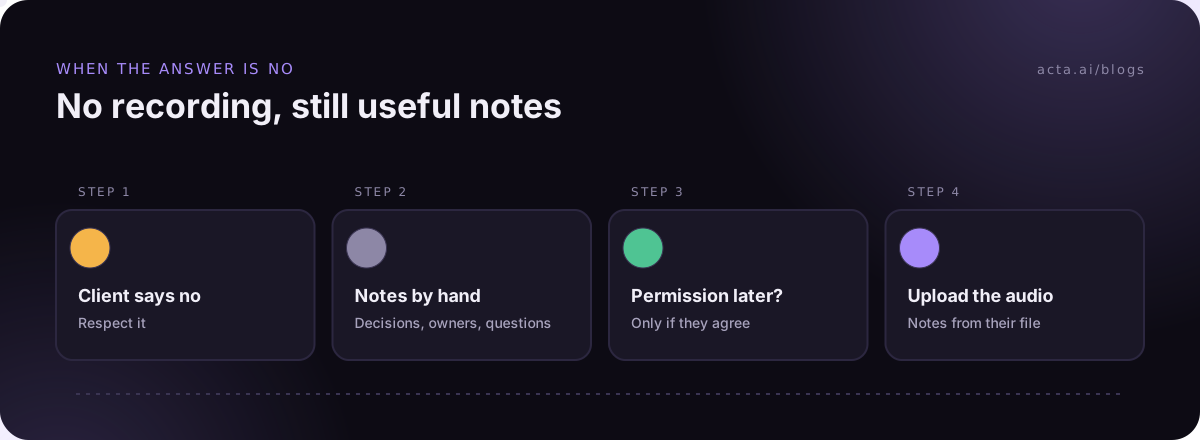
Respect it, and don't record. Not the desktop app, not the extension, not your phone on the desk. If you'd be uncomfortable with the client finding out later, you already have your answer.
What I do instead:
- Take notes by hand, with a structure. Three headings: decisions, action items with owners, open questions. Ignore everything else. Our post on how to take meeting notes has a format that works under pressure.
- Read the action items back at the end. "So, Marco sends the data export by Thursday, and I send the revised plan Monday. Did I miss anything?" It catches mistakes while everyone's still there.
- Send a written summary within the hour. Ask them to correct anything wrong. That email becomes the record.
- Ask about next time. Some clients say no on the first call and yes on the fifth, once they know you.
If the client records the meeting themselves and later agrees that you can process their recording, you can upload the audio file to Acta and get the same summary and action items. The important word is agrees. A recording they shared for reference isn't permission to run it through another tool.
Tips by role: consultants, sales reps and recruiters
Consultants and agencies
Your notes are often the deliverable. Ask for consent once in the kickoff, mention it in the statement of work if you can, and record working sessions with the desktop app. Our post on AI meeting notes for consultants and agencies covers what to do with the notes afterwards.
Sales reps
In my experience, discovery calls are where bots get refused most, especially once procurement or security joins. Record from your device, and use the follow-up email draft to send the recap the same afternoon. Acta's sales call assistant page covers call reports such as MEDDPICC notes.
Recruiters
Candidates are nervous enough without a bot. Ask at the start, say what the recording is for, and stop if they hesitate. If you're on the client's Teams as a guest, the desktop app is usually the simpler route. See Acta for hiring for interview scorecards.
Is an AI notetaker when bots are not allowed less accurate?
You get the same kinds of notes. The main difference is speaker names. With the desktop app, your voice is marked as you and the other voices are named from the conversation and your calendar invite; the Acta bot names speakers from the participant list, which is more exact. With the extension, speaker names come from the meeting.
In practice, recording quality depends more on your setup than on the method. Wear headphones, check that the right microphone is selected, and pause any music or videos before you start. If you're not the host at all, our guide on recording a meeting when you're not the host has more on that situation.
Frequently asked questions
Can the client see that I'm using Acta?
They won't see a participant join, because none does. That's exactly why you should tell them yourself and paste the Copy notice text into the chat.
Can I record a Zoom desktop meeting with the Chrome extension?
Use the desktop app for Zoom and Teams desktop meetings. The extension is for Google Meet, Teams in the browser and the Zoom web client.
What if I can't attend the client call myself?
Bot-free recording needs you in the meeting, since it records from your device. If the client allows bots, the Acta notetaker can attend for you. If they don't, ask a colleague who is attending to take notes.
Is it okay to record if the client never replies to my question?
I wouldn't. Silence isn't a yes. Ask again out loud, and if you still don't get a clear answer, take notes by hand.
Does recording stop when my free trial ends?
After the 15-day free trial, starting a new recording needs Acta Pro. A recording that's already running is never stopped.
If most of your client calls are in the Zoom or Teams apps, get the Acta desktop app; if they're in the browser, add the Chrome extension instead.