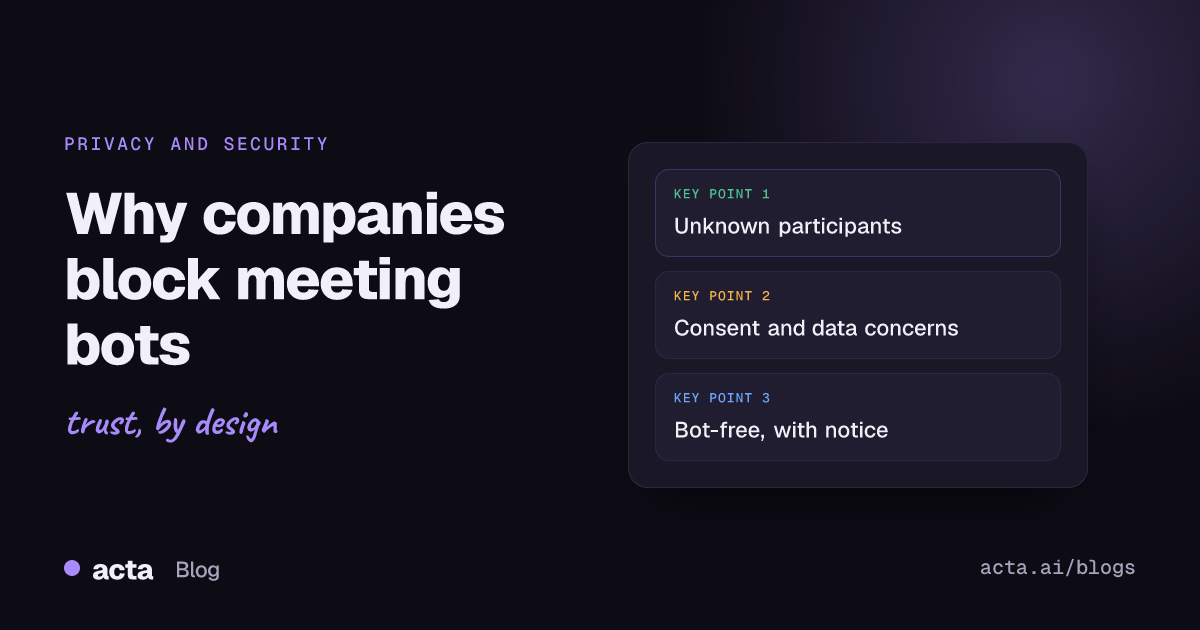
Quick answer: Companies block meeting bots because a bot is an extra participant in a private call: it records everyone, sends the audio to an outside service, and often turns up without the host asking for it. IT teams use settings in Teams, Zoom and Google Meet to hold bots in the lobby or keep them out. The alternative is recording on your own device, with consent.
The first time I ran into this, our notetaker sat in a client's Teams lobby for the whole hour. Nobody let it in, nobody mentioned it, and afterwards their project lead told us, very politely, that their security team had a rule about "unknown participants". Fair enough. I'd have the same rule.
So this isn't a post about getting around anyone's policy. It's about why the policy exists, which settings actually enforce it, and what you can do instead when you still need notes from the call.
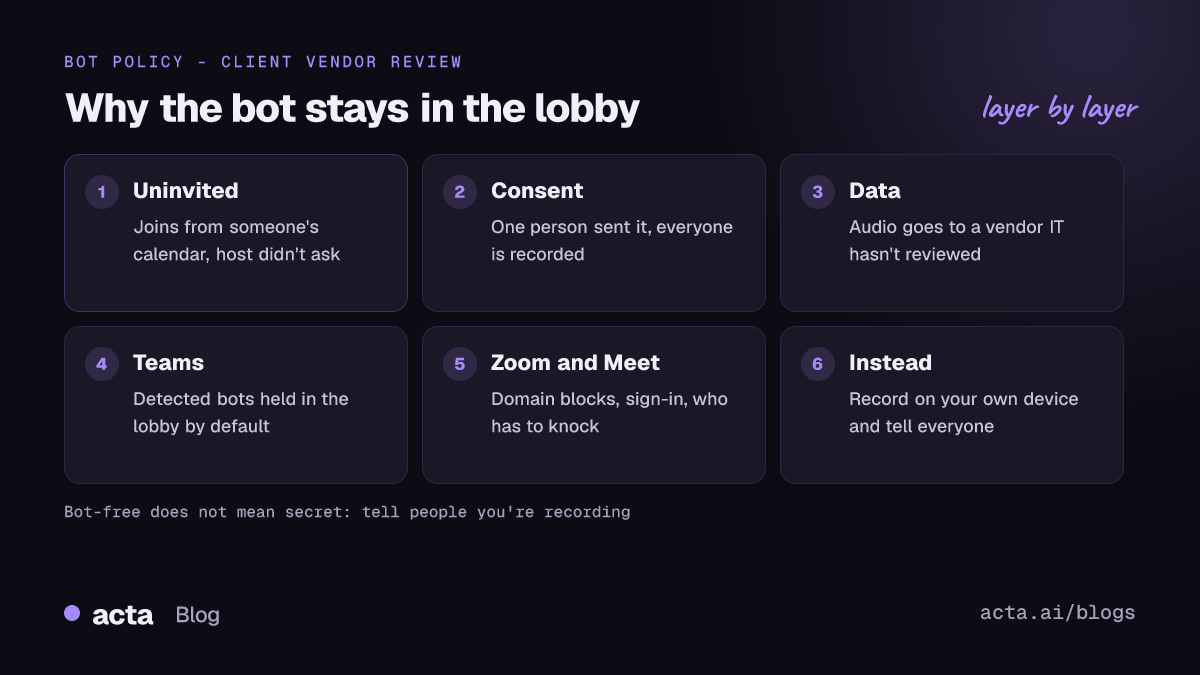
Why do companies block meeting bots?
When you talk to the people who write these rules, the same four reasons come up.
It's a participant nobody really invited
Many notetakers join from someone's calendar, which means a bot can arrive in a meeting the host never thought about. A board prep call, an HR conversation, a pricing discussion with a partner. The host sees a name they don't recognize and has to decide on the spot whether to let it in. Most security teams would rather that decision wasn't left to a busy host at 9:02.
Consent gets muddy
One person sent the bot. Six people are being recorded. Who agreed? In a lot of places the law expects everyone to know, and some expect everyone to agree. A bot tile in the gallery is a kind of notice, but it's not the same as someone saying "I'm recording this, is that OK?"
The data leaves the company
The bot sends the audio, and often the video, to a vendor's service. If that vendor hasn't been through the company's review, the security team has a recording of a confidential meeting sitting somewhere they've never assessed. That's the part IT cares about most, and they're right to.
It changes the conversation
This one's softer, but I've seen it often. When a bot joins, people get guarded. The client who was about to tell you the real reason the project stalled decides to say it later, on a call without the extra tile. Which defeats the point of taking notes.
Which settings do Teams, Zoom and Meet use to keep bots out?
Here's what the platforms' own help pages describe, as of November 2026. Settings move around, so check your admin console before quoting any of this in a policy.
Microsoft Teams: bot detection in the lobby
Microsoft's admin page on managing external bots and their access to meetings describes a meeting policy setting that detects bots joining from outside the organization. Detected bots are marked in the lobby and held there until someone admits them, and requiring approval when a bot is detected is the default. Microsoft also warns that detection can sometimes flag a human as a bot, which is worth knowing before you blame the guest who can't get in.
Teams admins have older levers too. Microsoft's guide to managing anonymous participant access covers whether people who aren't signed in can join at all, and lobby settings decide who waits.
Zoom: domains and sign-in
Zoom has a help article on blocking bots from joining meetings and webinars, which points admins at security settings such as blocking specific email domains. Zoom also lets admins and hosts require authentication to join, limiting a meeting to signed-in users or to accounts from particular domains. Zoom's pages say these need a Pro, Business, Education or Enterprise account, and admin rights to change them for the whole account.
Google Meet: who has to knock
Google's tips on controlling meeting access and participation describe three access types. Open lets anyone with the link in. Trusted lets the organization's people and calendar-invited guests in, and everyone else knocks. Restricted only lets in people invited through the calendar event or by a host. Hosts can also stop uninvited people from asking to join at all.
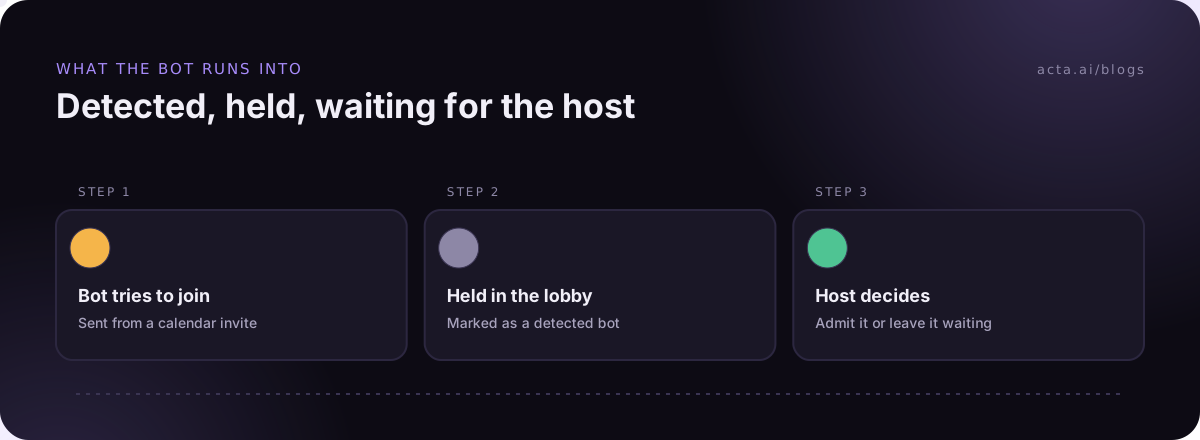
Notice that none of these settings are really "anti-AI". When companies block meeting bots, they mostly reach for the tools they already had for keeping strangers out: the meeting lobby, sign-in rules, a knock that someone has to answer. A bot just happens to look like a stranger.
Are companies right to block meeting bots?
Mostly, yes. I'd put it this way: the problem was never the notes. It was capture that nobody in the room signed off on, going to a place nobody in IT had checked.
Where blanket bans go wrong is when they catch the people who were trying to do it properly. The account manager who always says "I'm recording for notes" at the top of the call gets the same treatment as the bot that auto-joined a meeting its owner wasn't even in. Some policies are written as "no bots" when what they mean is "no unattended recording". Those are different rules, and it helps everyone when the policy says which one it is.
What can you use instead of a meeting bot?
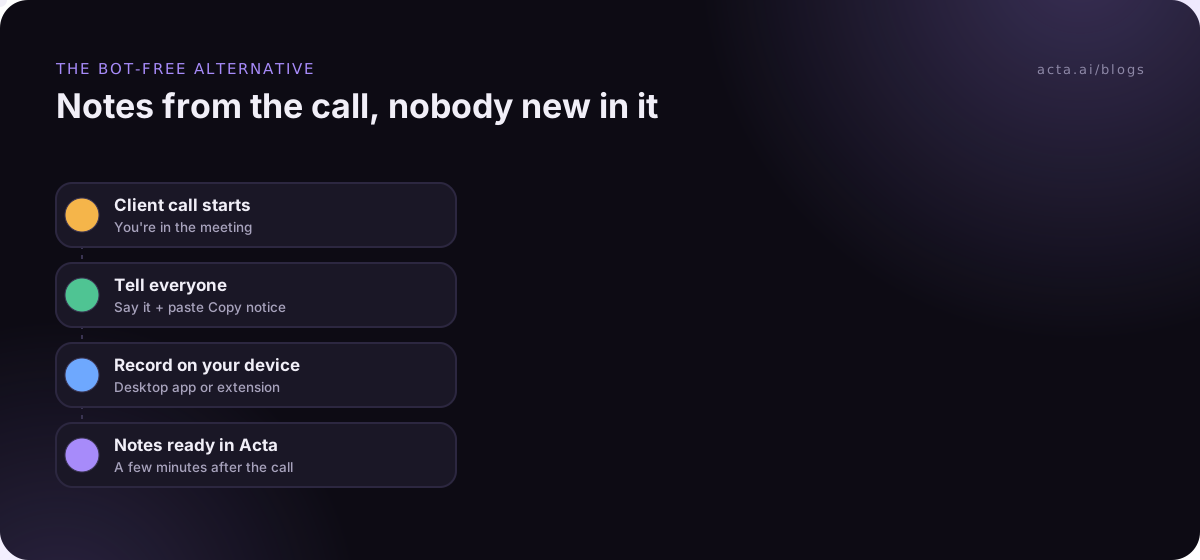
Record on your own device, in the meeting you're attending, with everyone told. That's what a bot-free AI notetaker does: it records from your computer instead of joining as a participant, so nobody sees a bot in the participant list. You still get a transcript, summary and action items afterwards.
Acta offers three ways to do this:
- The Acta desktop app for Windows and Mac. It notices meetings in the Zoom and Microsoft Teams desktop apps on its own, and any other call (Webex, Slack huddles, WhatsApp, Meet in a browser) works by pressing Record. It records the meeting's sound and your microphone, never the screen.
- The Acta Chrome extension, which records Google Meet, Microsoft Teams in the browser and the Zoom web client from your Chrome tab. The Chrome extension guide has the setup steps.
- The mobile app for in-person meetings, where there's no call to join anyway.
Nothing is recorded until you press record or turn on automatic recording. And because it records from your device, the obvious limit applies: you have to be in the meeting.
If you want a wider view of the category, we compared the best AI notetakers without a bot separately.
Does bot-free recording get around the rules?
No, and you shouldn't use it that way. Bot-free does not mean secret.
If a client's rule is "no bots", recording on your own device with everyone told usually fits it: there's no unknown participant and you're the one accountable for the recording. If their rule is "no recording", then it's no recording, and a different method doesn't change that. Ask. Tell people you're recording, and get consent where the law requires it. Our post on recording meetings with AI, consent and what to tell participants covers the legal side.
Acta's desktop app has a Copy notice button that puts a recording notice on your clipboard to paste into the meeting chat. I paste it and say it out loud. If someone says no, I stop and take notes by hand. For more on handling a client who refuses, see our guide to using an AI notetaker when bots are not allowed.
What should an IT team actually write into the policy?
If I were drafting it, I'd keep it short:
- Say what's banned. Unattended bots? Any recording? Recording by outside guests? Pick one and write it plainly.
- Require notice every time. Spoken at the start, and in the chat.
- Name the approved tool. People will record anyway; give them one your team has reviewed, so the data ends up somewhere you know.
- Prefer recording by someone who's present. That person can answer "are you recording?" A bot can't.
- Set the detection defaults and leave them. Holding detected bots for approval, as Teams does by default, is a sensible middle ground.
For teams that need more control over where recordings live, Acta's Enterprise plan includes SSO, private storage, custom data retention and on-premise deployment. The security page has the details.
When is a meeting bot still the right choice?
When you can't be there. Bot-free recording needs you in the meeting; a bot doesn't. The Acta bot joins from your calendar as "Acta Notetaker", and the host admits it like any guest. It also names speakers from the participant list, which is more exact than working it out from the audio. For your own internal meetings, where everyone knows the bot and the policy allows it, that's often the easier option. We've laid out the trade-offs in meeting bot vs desktop app vs Chrome extension.
Frequently asked questions
Why does my notetaker get stuck in the lobby?
The host's settings hold it there. In Teams, detected external bots wait in the lobby until someone admits them; in Meet and Zoom, access and sign-in settings can keep uninvited participants out.
Is it legal to record a meeting without a bot?
Recording method doesn't change the law. Tell everyone, and get consent where the law requires it. Rules differ by country and state.
Do bot-free notes have less detail?
No. Recording without a bot gives you the same AI meeting notes as the Acta notetaker: transcript, summary, decisions and action items with owners. Speaker names come from the meeting or the conversation instead of the participant list.
Can IT tell if I'm recording on my own computer?
That's the wrong question. If you're recording, say so. The point of bot-free recording is no unknown participant, not no notice.
Which bot-free option should I use?
Zoom or Teams desktop apps: the desktop app. Meet, Teams in the browser or the Zoom web client: the Chrome extension. In-person: the mobile app.
If your clients or your own IT team keep bots out, try recording on your own device with the Acta desktop app or the Chrome extension, and tell everyone before you press record.