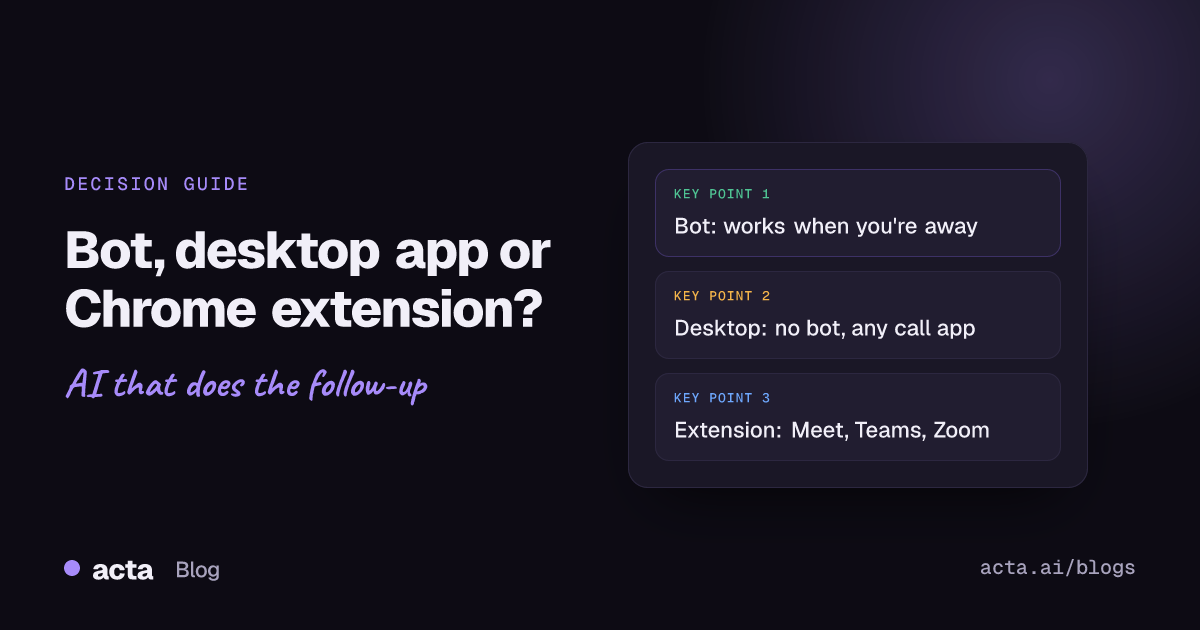
Quick answer: On meeting bot vs desktop app, the rule is simple. Send the Acta bot when you can't attend or the host is happy to admit a notetaker. Use the Acta desktop app for calls in the Zoom or Teams apps, or any other calling app, when you'd rather no bot joins. Use the Chrome extension for Google Meet, Teams in the browser and the Zoom web client.
I record somewhere around fifteen calls a week, and I use all three. I'd happily use one, but the right one changes with the call. The Monday team stand-up gets the bot. The Thursday client check-in, where the client's IT team has a rule about third-party participants, gets the desktop app. The odd Google Meet with a recruiter I've never met gets the extension, because that's the window I'm already in.
The meeting bot vs desktop app question comes up every time someone on our team starts a new client project. This post is the decision list I wish someone had handed me. It covers what each option actually does, where each one trips people up, and a short set of questions that pick the right one in about ten seconds.
What are the three ways Acta can record a meeting?
Acta has three ways to capture an online call, plus two for things that aren't online calls at all.
- The meeting bot. Connect your calendar and the Acta notetaker joins your Zoom, Google Meet or Teams meetings as a participant called "Acta Notetaker". It works even when you aren't there.
- The desktop app for Windows and Mac. It records the meeting's sound and your microphone from your own computer. No participant joins the call. It never records your screen.
- The Chrome extension. It records Google Meet, Microsoft Teams in the browser and the Zoom web client from the Chrome tab you're in. No participant joins here either.
- The mobile apps for in-person meetings, and file upload for audio you already have.
Whichever you pick, the output is the same: a transcript with speakers, a summary, action items with owners, decisions and a follow-up email draft. Acta's own bot-free notetaker page puts it plainly: recording without a bot doesn't mean fewer notes. The difference is only in how the sound gets to Acta, and who has to be in the meeting for that to happen.
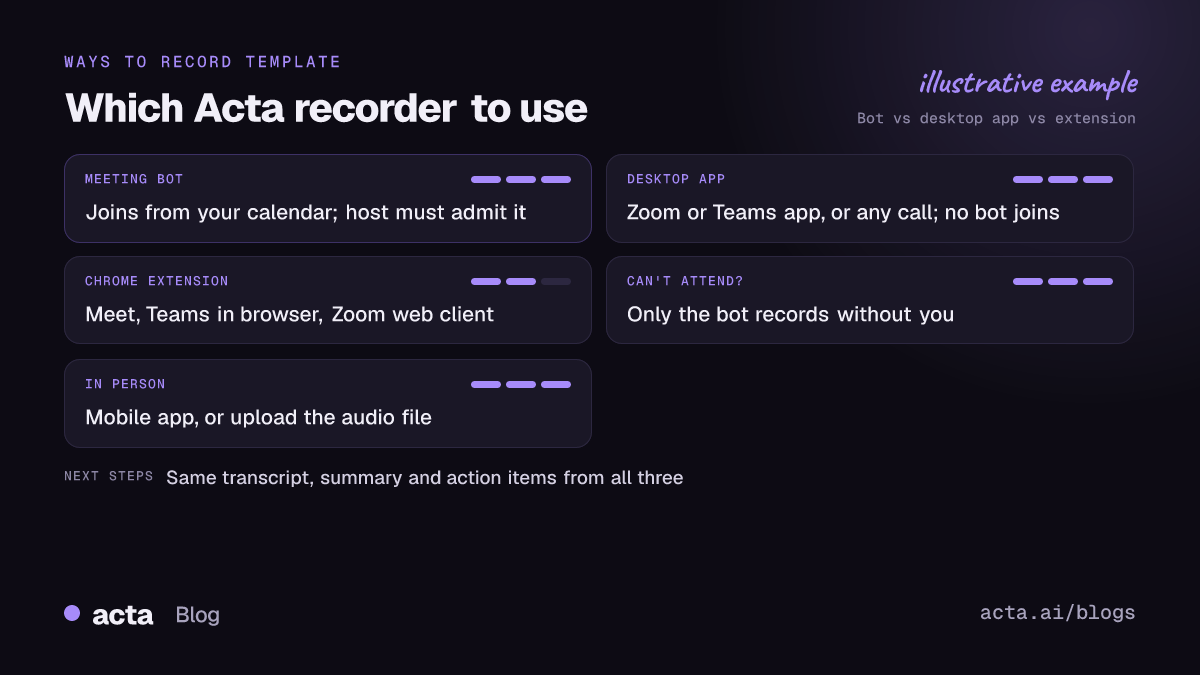
Meeting bot vs desktop app vs Chrome extension: the short decision list
Go down this list and stop at the first yes.
- Is it in person? Use the mobile app, or record in the browser. If you already have the audio file, upload it.
- Can you not attend, or are you double-booked? Send the bot. It's the only option that works without you, because the other two record from your own device.
- Is the call in the Zoom app or the Teams app on your computer? Use the desktop app. It notices the meeting by itself.
- Is it Google Meet, Teams in the browser or the Zoom web client in Chrome? Use the Chrome extension.
- Is it Webex, a Slack huddle, a WhatsApp call or anything else? Use the desktop app and press record.
- None of the above, and you just want it handled? The bot, as long as the host doesn't mind admitting it.
That list hides a few trade-offs, so here they are one at a time.
When is the meeting bot the right choice?
The bot is the most hands-off option. Once your calendar is connected, it turns up to meetings so you don't have to remember anything two minutes before the call. It's also the only way to get notes from a meeting you can't make, which is the whole reason some people sign up.
It has one more advantage that's easy to miss. The bot names speakers from the meeting's participant list, which is more exact than the bot-free options, where the desktop app names other voices from the conversation and your calendar invite.
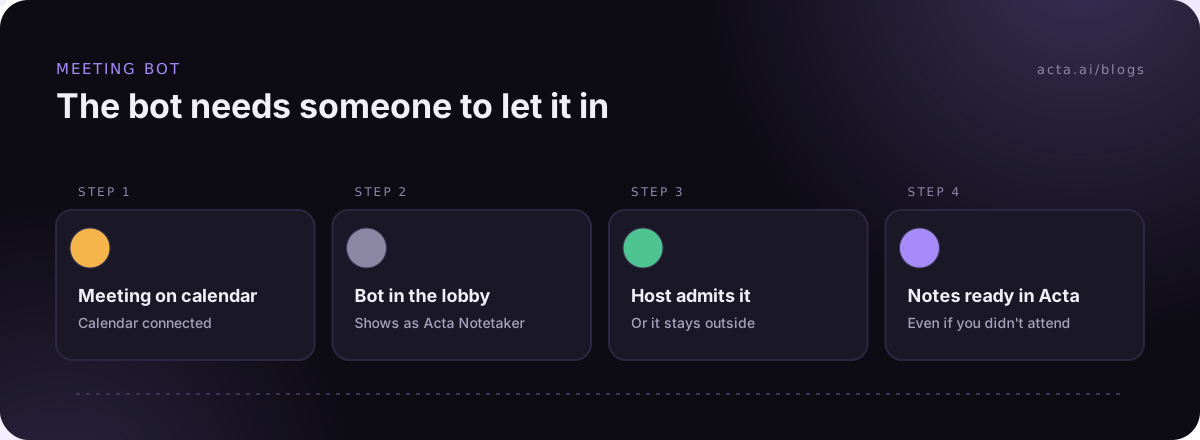
The catch is that the bot is a participant. Everyone sees "Acta Notetaker" in the list, and if the meeting has a waiting room or lobby, someone has to let it in. In Teams, Microsoft's guide to using the lobby in Teams meetings says the organizer, co-organizers and presenters can admit people by default, and organizers can limit that to organizers and co-organizers only (as of November 2026). Admins set who skips the lobby in the first place; Microsoft Learn covers that in who can bypass the meeting lobby. In Google Meet, people outside the invite "knock" and the host admits them, as described in Google's update on admitting or denying join requests.
So if you're a guest on someone else's call, the bot's fate is in the host's hands. Most of the time that's fine. On a sales call with a procurement team or a first conversation with a new client, I don't love making the other side decide about my notetaker before we've said hello. Some companies just say no; we wrote up why companies block meeting bots if you want the reasons.
The Acta help page on sending the Acta notetaker has the setup details.
When should you use the desktop app instead of a bot?
Use the Acta desktop app when you're in the meeting yourself and you don't want a participant added. It runs on Windows 10 (version 1903 or later) or Windows 11, and macOS 14.2 or later on Apple chip or Intel Macs.
Here's how it behaves on a normal day. You join your meeting in the Zoom or Microsoft Teams app (Teams free counts too). Acta opens by itself and asks whether to Record on this device, Invite Acta bot or dismiss. If you've turned on Record detected meetings automatically, it just starts. A small panel stays on top of your meeting with the timer, Pause and stop, and two meters, Meeting sound and Your mic, that move as people talk.
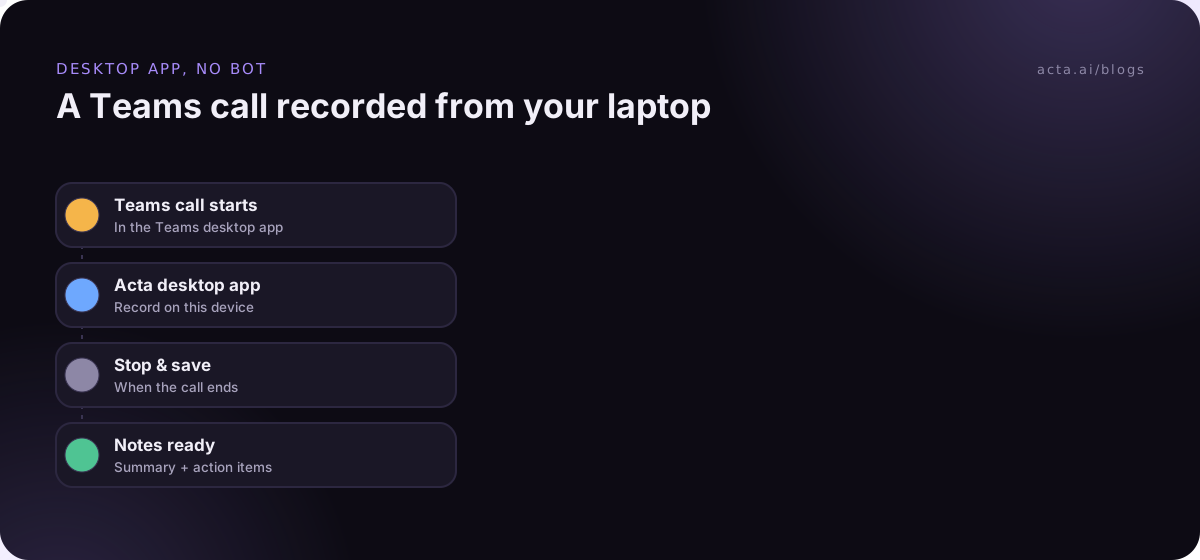
For any other calling app, such as Webex, Slack huddles, WhatsApp or Google Meet in a browser, open Acta, click Record on this device, then Start recording. It finds the meeting app and the meeting's name by itself.
The honest trade-offs:
- It has to be running. Acta only notices meetings while it's open in the menu bar or system tray, and only in the Zoom and Teams apps, not in a browser. I turn on Launch at startup and forget about it.
- Your computer has to be on for the whole call. Close the lid halfway through and you've lost the rest.
- It records everything you hear through the computer. That's the point, but it also means a YouTube tab or a music app ends up in the recording. Pause them first.
- First-time permissions. On a Mac you allow Microphone and System Audio Recording Only (System Settings, then Privacy & Security, then Screen & System Audio Recording). On Windows, "Let desktop apps access your microphone" must be on. Acta never asks to record your screen.
One small thing I like: the desktop app can still send the bot when you need it, using Invite Acta bot. And when the bot is in a meeting, the desktop app doesn't also record it on your computer, so you don't end up with two copies.
When is the Chrome extension the better fit?
If the meeting is already in a Chrome tab, the Acta Chrome extension is the least fuss. It records Google Meet, Microsoft Teams in the browser and the Zoom web client. For Zoom, that means choosing Join from your browser instead of opening the app.
Setup takes about a minute. Add it from the Chrome Web Store listing (it needs Chrome 116 or newer), log in once on the welcome page, and pin the Acta icon from the puzzle-piece menu. In a meeting, click the icon and press Start recording, or press Alt+Shift+R. The first time, Acta asks for microphone access - click Allow. A small Acta window in the meeting shows the timer and who is speaking.
It stops and saves by itself when you leave or the host ends the meeting, and you can always click Stop & save. The full walkthrough is in the Chrome extension guide.
Trade-offs here:
- Browser meetings only. If your company lives in the Teams desktop app, the extension isn't the tool. Use the desktop app.
- Closing the tab ends it. Reloading the meeting page or presenting your screen doesn't stop the recording. Closing the meeting tab stops it and saves it.
- It needs the meeting sound. If Chrome asks you to share the tab, click Share and keep "Also share tab audio" on. Without the meeting sound, Acta doesn't start and tells you what to change.
Which option works when the host blocks bots?
Both bot-free recording options. Neither the desktop app nor the Chrome extension adds anyone to the participant list, so there's nothing for a lobby to hold back or an admin policy to catch. That's the main reason to keep one of them installed even if the bot is your default: when you can't bring a bot, you can still record without a bot in the room.
What doesn't change is your obligation to the people on the call. Bot-free does not mean secret. Tell people you're recording and get consent where the law requires it. The desktop app has a Copy notice button that puts a short recording notice on your clipboard to paste into the meeting chat, which makes this a five-second job. Our guide on whether it's legal to record meetings with AI goes through what to say and when.
Does the meeting bot or desktop app need you in the meeting?
This is the question that settles most cases, so it's worth being blunt about it.
The bot
No. It attends on your behalf. If you're on a flight during the Friday supplier review, the bot can still be there.
The desktop app and the extension
Yes. Both record from your device, so you have to be in the meeting on that device for the whole call. If you can't join, the answer is the bot, or asking a colleague who is attending to record.
In-person meetings
None of the three. A meeting room with a whiteboard needs the Acta mobile app on a phone in the middle of the table, or browser recording. If someone already recorded it on a voice memo, upload the audio file.
What usually goes wrong with each option?
From watching colleagues set these up, the failures are boring and predictable.
- Bot: nobody admits it. The host is presenting, misses the lobby notification, and the bot sits outside for the whole meeting. If it's your meeting, keep an eye on the lobby for the first minute.
- Desktop app: it wasn't running. You restarted for an update and Acta didn't come back. Launch at startup fixes this. Acta installs its own updates after the meeting, so those never interrupt a recording.
- Desktop app: the wrong microphone. On a Windows 11 laptop with a dock, the system picks the webcam mic across the room. Watch the Your mic meter in the first few seconds.
- Extension: the meeting was in the app. Someone clicks a Zoom link and the Zoom app opens, not the browser. Pick Join from your browser, or use the desktop app.
- All three: forgetting to tell people. This one is on us, not the software.
Can you mix all three in one week?
Yes, and I'd recommend it. They all land in the same Acta account, so OneChat questions like "what did we agree about the launch date across last week's calls?" work no matter how each meeting was recorded. A typical setup looks like this:
- Bot on your calendar for internal meetings where everyone knows it.
- Desktop app running in the background for client calls in Zoom or Teams.
- Extension pinned for the browser meetings that turn up anyway.
The help page on ways to record a meeting lists all of them side by side. And if you're comparing tools rather than Acta's options, our roundup of the best AI notetakers without a bot covers the wider market.
One more thing on cost: the extension and desktop app are included in every plan, and you can use both during the 15-day free trial, with unlimited recordings and transcriptions. After the trial, recording needs Acta Pro. A recording that's already running is never cut off.
Frequently asked questions
Is the meeting bot or the desktop app better for audio quality?
Neither is a clear winner in my experience. The bot hears the meeting as a participant, and the desktop app takes everything your computer plays plus your microphone. The desktop app's weak spot is your own setup: a bad mic choice or a music app left running. Fix those two and most of the problems I've seen go away.
Can I use the Chrome extension for the Zoom desktop app?
Use the desktop app for that. The extension is built for Google Meet, Microsoft Teams in the browser and the Zoom web client. The desktop app detects Zoom and Teams app meetings on its own and doesn't need any extra steps.
Will other people see that I'm recording without a bot?
They won't see a participant join. That's exactly why you should tell them yourself. Paste the notice from Copy notice in the desktop app, or say it at the start: "I'm recording this for notes, is that okay?"
Do I see the transcript during the meeting?
No. Acta transcribes the meeting once it's over, and the notes are usually ready a few minutes later. With the extension you'll get a Meeting saved to Acta notification; in the desktop app the meeting shows Saved, then Notes ready.
What if the bot and the desktop app both try to record?
They don't. When the Acta bot is in a meeting, the desktop app doesn't also record it on your computer.
If you're in your own meetings most of the day, start with the Acta desktop app and add the bot for the meetings you can't make; the pricing page has the plan details.