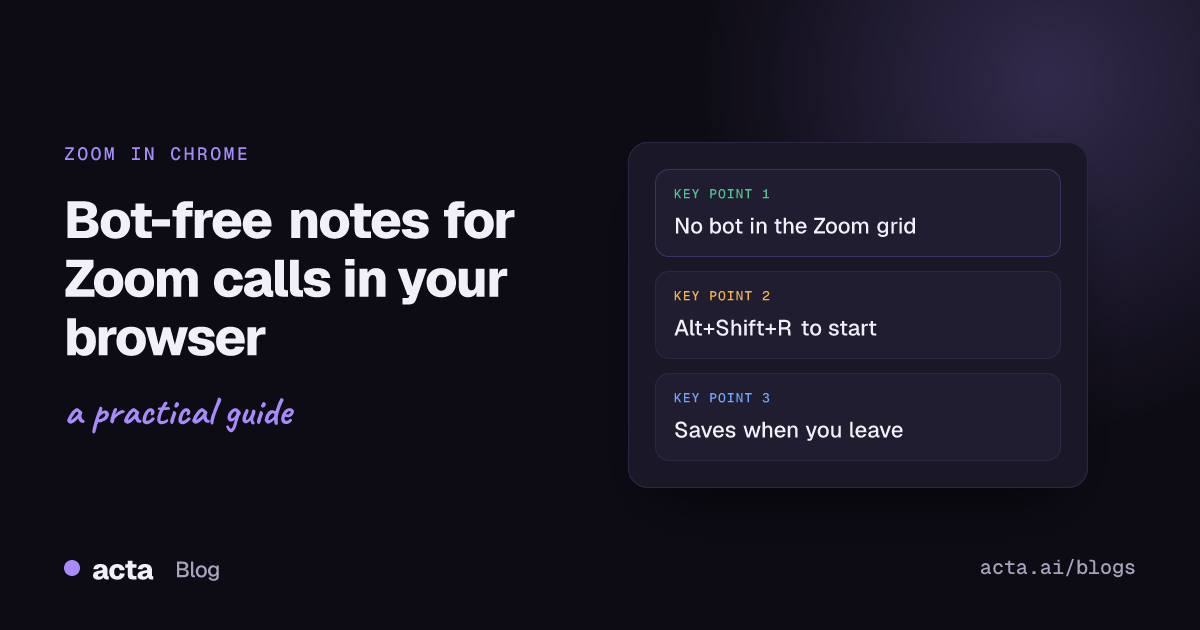
Quick answer: A Zoom web client notetaker records the call from your browser instead of sending a bot. With the Acta Chrome extension (Chrome 116 or newer), join the meeting with Zoom's Join from your browser link, click the Acta icon and press Start recording, or press Alt+Shift+R. When you leave, Acta saves the call and writes the transcript, summary and action items.
I know a fair number of people who never installed Zoom. Freelancers who get a different client's link every week. Consultants on a client-issued laptop where installing apps means a ticket. People who just don't want another thing auto-launching at login. They click the invite, dismiss the prompt to open the Zoom app, and join in a Chrome tab.
That works fine for the call. Notes are the problem. A notetaker bot shows up as an extra name in the grid, and Zoom's own recording usually belongs to the host. This guide is about the third option: recording the Zoom tab itself, from your side, with no bot.
What is the Zoom web client, and when do you end up in it?
The Zoom web client is simply Zoom running in a browser tab. Zoom's article on joining a meeting without an account describes the usual path: open the invite link, cancel the prompt to open the app, and choose the "join from your browser" link at the bottom of the page. Signed-in users also have the Zoom Web App, which Zoom pitches as the full Zoom Workplace experience in the browser.
Two things can stop you getting there, as of November 2026:
- The host's setting. The "Join from your browser" link only appears if it's enabled. Zoom's page on the Show a "Join from your browser" link setting explains that account owners and admins control it, and individual hosts can change it unless an admin locked it.
- End-to-end encryption. If the host turned on end-to-end encryption, web users are prompted to join from the Zoom desktop or mobile app instead.
If you can't find the browser link, that's usually why. More on what to do then further down.
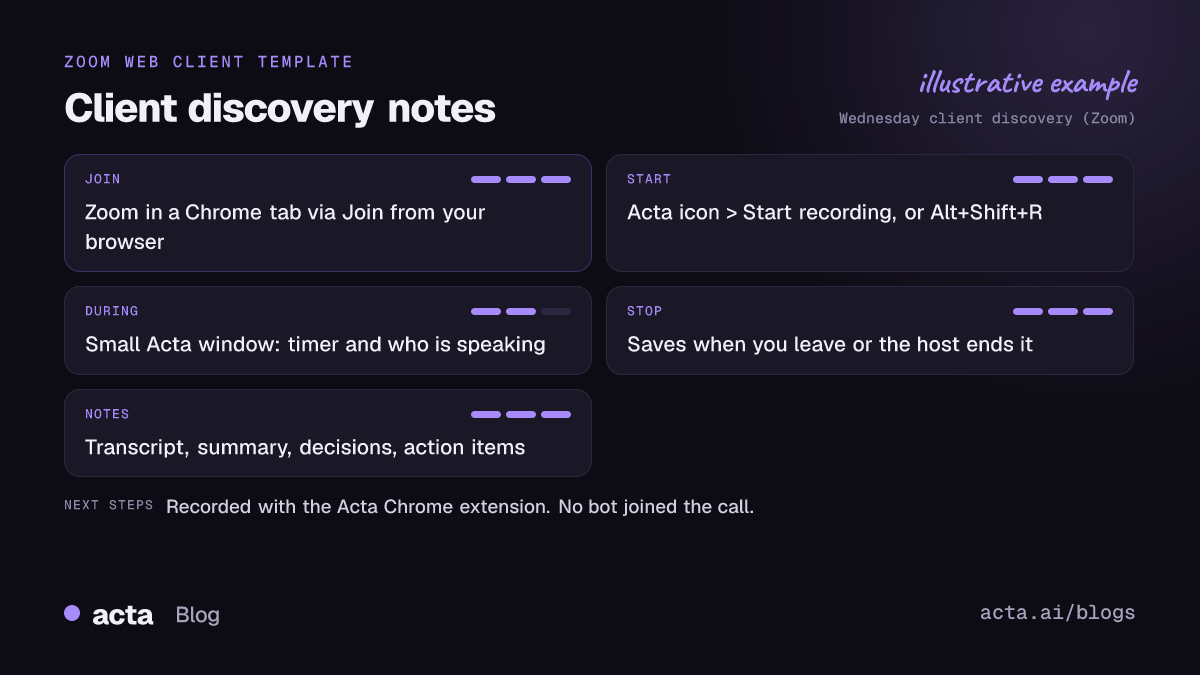
Why use a Zoom web client notetaker instead of a bot or Zoom's recorder?
Zoom has recording built in, but it's on the host's terms. According to Zoom's guide to starting a computer recording, participants can only record locally if the host allows it, and hosts can set it so you have to request permission first. If you're a guest on someone else's sales call, asking for that mid-meeting is awkward.
A bot fixes the permission part and creates a new one. It's a visible participant, it has to be admitted, and some companies turn bots away by policy. The Acta Chrome extension records from your browser, so no extra participant joins the call, and it keeps working where bots are blocked. Running Zoom without a bot also means one fewer name in the participant list for the host to ask about. You get the same notes either way: transcript with speakers, summary, decisions, action items with owners and a follow-up email draft.
The catch: you have to be in the meeting yourself. For calls you can't attend, connect your calendar and send the Acta bot. Our roundup of AI notetakers without a bot compares how other tools handle this.
How do you set up the Acta Chrome extension?
Do this once, ideally the day before, not when the meeting is already starting.
- Add the extension from the Acta Chrome extension page (it goes to the Chrome Web Store listing). It needs Chrome 116 or newer.
- A welcome page opens. Click Login and sign in to Acta. You only do this once; the extension stays logged in.
- Pin the Acta icon: click the puzzle-piece menu in Chrome's toolbar and pin it, so it's one click away.
That's all. If your Chrome is managed by work and you can't add extensions, this route is closed and you'll want the desktop app (see below), assuming you can install that.
How do you record a Zoom call in Chrome, step by step?
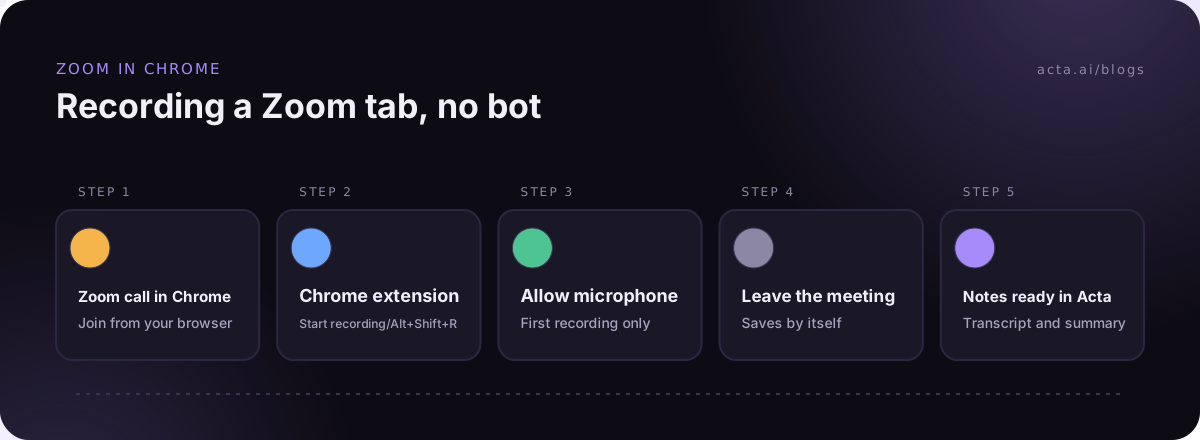
- Join in a Chrome tab. For Zoom, use Join from your browser rather than letting the app open.
- Start recording. Click the Acta icon in the toolbar and press Start recording, or press Alt+Shift+R.
- First time only: Acta asks for microphone access. Click Allow, so your own voice is in the transcript. Recording then starts by itself.
- Check the little window. While it records, a small Acta window in the meeting shows the timer and who is speaking.
- Just leave when you're done. Recording stops and saves when you leave the meeting or the host ends it. You can also click Stop & save.
If you only remember one thing about how to record Zoom in Chrome: join in the browser first, then start Acta. The extension can only record a meeting that is actually running in a Chrome tab.
If Chrome asks you to share the tab, click Share and keep "Also share tab audio" on. Without the meeting sound Acta doesn't start, and it tells you what to change. I'd rather it refuse than quietly record only my side of a client call.
The shortcut is the bit I use most. Alt+Shift+R as the host says "OK, let's get started" is faster than hunting for the toolbar. You can change it at chrome://extensions/shortcuts if it clashes with something.
What do you get from a Zoom web client notetaker after the call?
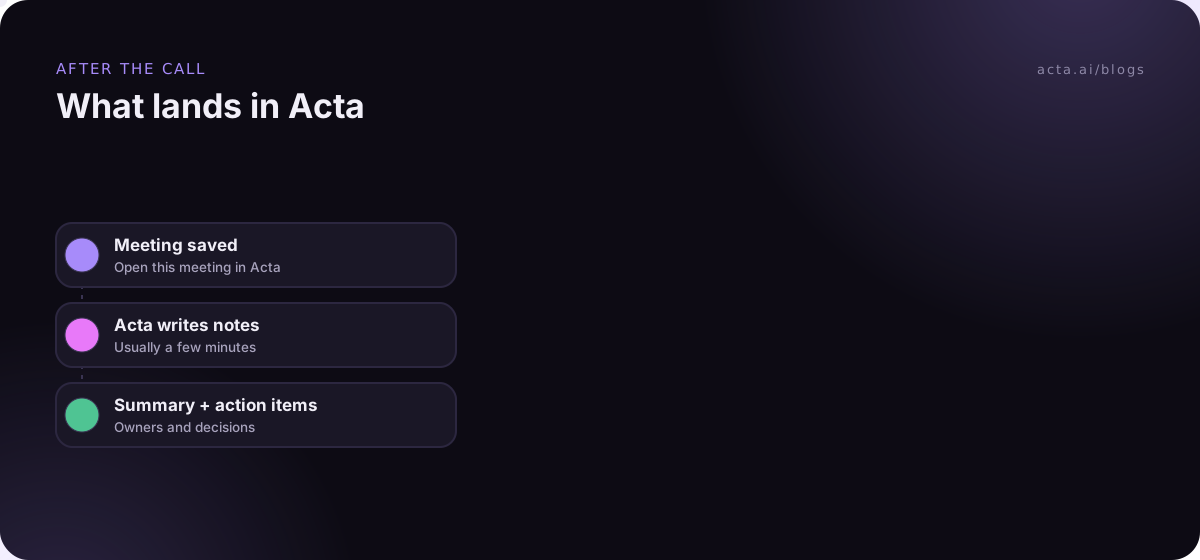
Click Open this meeting in Acta in the window, the Meeting saved to Acta notification, or Last meeting in the popup. The transcript and summary appear on the meeting's page once Acta has processed it, usually a few minutes after the call. Speaker names are picked up from the meeting, so the transcript shows who said what.
The recording is uploaded while the meeting runs. If Acta can't be reached (hotel Wi-Fi, a VPN that drops), the file is kept in Downloads/Acta Recordings instead, so you don't lose the call.
From there you can ask OneChat questions across meetings, like "what did the client say about the launch date in the last three calls?" With one call it's a search box; with ten calls from the same client it's how you prep for the eleventh.
When should you use the desktop app instead of the extension?
The extension covers Google Meet, Microsoft Teams in the browser and the Zoom web client. If you join Zoom in the Zoom desktop client, use the Acta desktop app instead. Same goes when the host's end-to-end encryption pushes you into the app.
The desktop app works on Windows 10 (1903 or later), Windows 11 and macOS 14.2 or later. It notices a meeting in the Zoom app by itself and asks whether to Record on this device. It records the meeting's sound and your microphone, never your screen, and a Zoom meeting stops and saves by itself when it ends. We've written separate walkthroughs for recording Zoom on a Mac without a bot and on Windows.
My rule of thumb: if you usually click "Join from your browser", use the extension. If Zoom is installed and opens on its own, get the desktop app and stop thinking about it.
What trips people up with Zoom in the browser?
- The app opened anyway. Chrome remembered an earlier choice to open Zoom links in the app, so the Zoom app launched and the extension has nothing to record. Leave, rejoin, and pick the browser link.
- The Acta window isn't there. It only appears once you're actually in a meeting. On the Zoom join page or waiting screen, there's nothing to record yet.
- Closing the tab. Reloading the meeting page or presenting your screen doesn't stop the recording. Closing the meeting tab does stop it, and saves it.
- A Zoom redesign. If Zoom changes its buttons, Acta keeps recording rather than stopping by mistake. So if a call ended and the window is still counting, click Stop & save yourself.
- The trial ran out. On the free trial the window shows the days left. After the 15-day trial, Start recording is turned off until you upgrade; a recording already running is never stopped.
The full troubleshooting list is in the Chrome extension help guide.
Do you need to tell people you're using a notetaker?
Yes. Bot-free does not mean secret. With no bot in the grid, nobody can tell you're recording unless you say so, which puts the responsibility squarely on you. Tell people you're recording and get consent where the law requires it. A line in the Zoom chat at the start ("recording this for my notes, OK with everyone?") takes ten seconds.
Laws differ by place, and some calls (interviews, patient calls, client calls in finance) come with stricter expectations. Read our guide on whether it's legal to record meetings with AI and what to tell participants before you make this a habit. And if you're not the host, our post on how to record a meeting when you are not the host covers the etiquette side.
Frequently asked questions
Does the extension work if I join Zoom without a Zoom account?
The extension records the Zoom web client in a Chrome tab, so what matters is joining in Chrome. Zoom lets you join as a guest from the browser when the host allows it. You do need an Acta account to sign in to the extension.
Does a bot or extra participant appear in the Zoom meeting?
No. The extension records from your browser, so no extra participant joins the call.
Can I use it in Edge or Safari?
It's a Chrome extension and needs Chrome 116 or newer. For calls in other browsers or apps, the Acta desktop app can record them when you press Start recording.
Is the Zoom web client notetaker free?
Installing the extension is free, and it's included in every Acta plan, so you can use it during the 15-day free trial. After that, recording needs Pro. See the pricing page for plans.
Will I see the transcript during the meeting?
No. The window shows the timer and who's speaking. Acta writes the transcript and summary after the call, usually within a few minutes.
If your next Zoom call is a link you'll open in Chrome, add the Acta Chrome extension and pin it before the meeting starts.