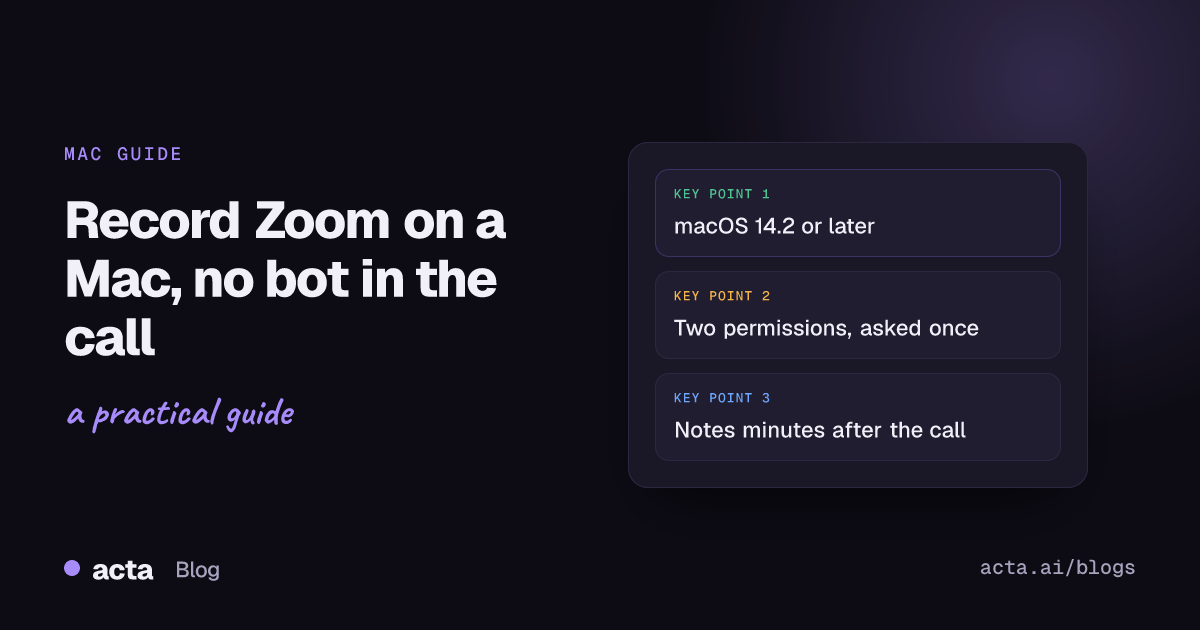
Quick answer: To record a Zoom meeting on a Mac without a bot, install the Acta desktop app (macOS 14.2 or later), allow Microphone and "System Audio Recording Only" when macOS asks, then join your call in the Zoom app. Acta notices the meeting and offers Record on this device. No notetaker joins the call, and your notes are usually ready a few minutes after it ends.
Here's the situation I end up in most weeks. It's the Thursday client check-in, it's on Zoom, I'm not the host, and Zoom's Record button either isn't there or wants to ask the host for permission. I could ask. I could also send a notetaker bot in and watch the client squint at a new name in the participant list. Usually I do neither: I record on my own MacBook Air, tell everyone at the start, and get the summary afterwards.
If you typed "record Zoom meeting on Mac" into a search bar, this is the long version of that answer. It covers the Zoom desktop app on macOS, the two permissions macOS will ask you for, and the handful of things that go wrong the first week. (If you join Zoom in Chrome rather than the app, skip to the section on the browser near the end.)
Why not just press Record in Zoom?
Sometimes you should. If you're the host and you want a video file of the call, Zoom's own recorder does the job. The catch is who gets the button.
As of November 2026, Zoom's help page on enabling computer recording (Zoom's name for local recording) says it's available on free and paid accounts, but it's restricted to the host by default. A participant only gets it when the host picks Allow Record next to their name. Recording to the cloud is a paid feature: Zoom's guide to enabling cloud recording ties it to licensed users on Pro, Business or Enterprise accounts.
So as a guest you're stuck asking for permission mid-call, which is awkward on a sales call and impossible if the host's account has recording locked off.
The other common route is an AI notetaker bot. It joins as an extra participant, someone has to admit it, and plenty of clients now refuse them on principle. We wrote up why companies block meeting bots separately, and the short version is that an unknown participant in a confidential call makes security teams nervous.
The Acta desktop app takes a third route. It records on your Mac, from the sound the Mac plays and your microphone, so it doesn't depend on Zoom's Record button and nothing new shows up in the meeting. What it doesn't do is excuse you from telling people. More on that below.
What do you need before you start?
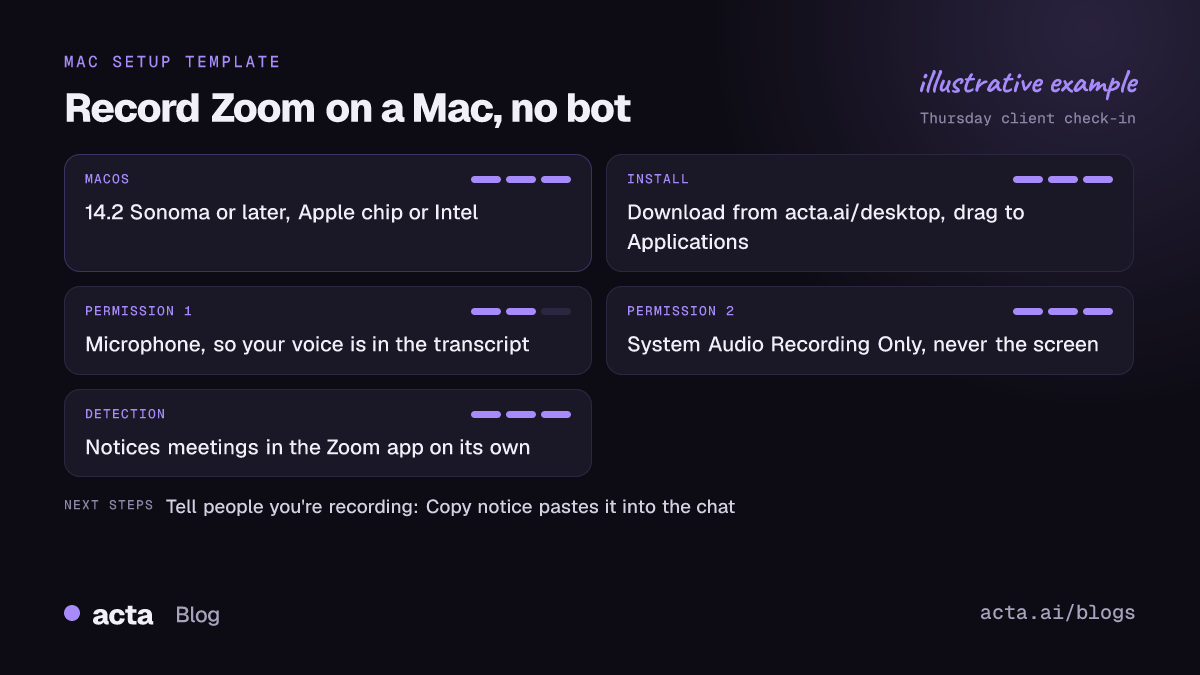
- macOS 14.2 Sonoma or later. Acta's desktop app runs on Apple chip and Intel Macs, but not on anything older than 14.2.
- The Zoom desktop app. Acta notices meetings in the Zoom app by itself. Meetings in a browser don't get detected (there's a workaround later).
- An Acta account. Every account starts with a 15-day free trial with unlimited recordings and transcriptions, and the desktop app is included.
- Two minutes before your first call, not two minutes into it. The permission prompts are quick, but you don't want to meet them while a client is talking.
Not sure which chip you have? Open the Apple menu and choose About This Mac. Apple's page on Mac computers with Apple silicon explains it: an Apple silicon Mac shows a "Chip" line (M1, M2 and so on), and an Intel Mac shows "Processor". It matters for one thing only, which download you grab.
How do you install the Acta desktop app on a Mac?
- Go to the Acta desktop page and click Download for Mac. The page checks your browser and picks the Apple chip or Intel file for you. It defaults to Apple chip.
- On an Intel Mac, use the note under the button ("Intel Mac? Download here") if the page guessed wrong.
- Open the downloaded file and drag Acta into Applications.
- Open Acta from Applications. The Mac app is signed by Agilean Solutions (the company behind Acta) and notarized by Apple, so it opens with a normal double-click. No right-click-and-Open routine.
- Follow the prompts to sign in to your Acta account.
One setting I'd switch on straight away is Launch at startup. Acta only notices meetings while it's running in the menu bar, and the day you forget to open it is the day the important call happens. Updates won't catch you out mid-call either: Acta installs them after the meeting.
Which macOS permissions does Acta ask for?
Two, the first time you use it. Both are standard macOS privacy prompts, and both are worth reading instead of clicking through.
Microphone
This puts your own voice in the transcript. Without it you get a lovely record of everyone except yourself, which is less useful than it sounds when you're the one who promised to send the proposal. Apple's guide to controlling microphone access on Mac shows where this lives if you need to change it later.
System Audio Recording Only
This is how Acta hears the other people on the call. You'll find it under System Settings > Privacy & Security > Screen & System Audio Recording. Apple's page on screen and system audio recording explains that macOS lets you allow screen and audio, or audio alone. Acta asks only for audio. It never asks to record your screen, and it never does.
If seeing the word "Screen" in that settings pane makes you pause, good instinct. Check that Acta's entry says audio only and move on.
The one-time audio check
After the permissions, Acta plays a test sound and asks you to say a few words, so it knows it can hear the meeting and you. Do this with the headphones you actually use for calls. If you take calls on AirPods, connect them first.
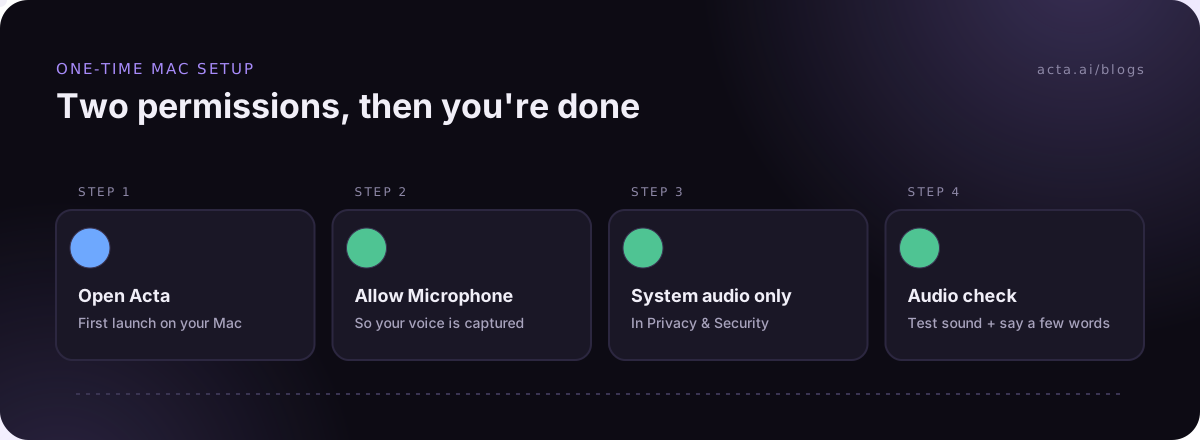
Clicked Don't Allow by reflex? Everyone does it once. Open System Settings, go to Privacy & Security, find Microphone or Screen & System Audio Recording, and switch Acta on.
Record Zoom meeting on Mac: the steps, start to finish
After setup, the everyday part is short. For the Thursday check-in it goes like this:
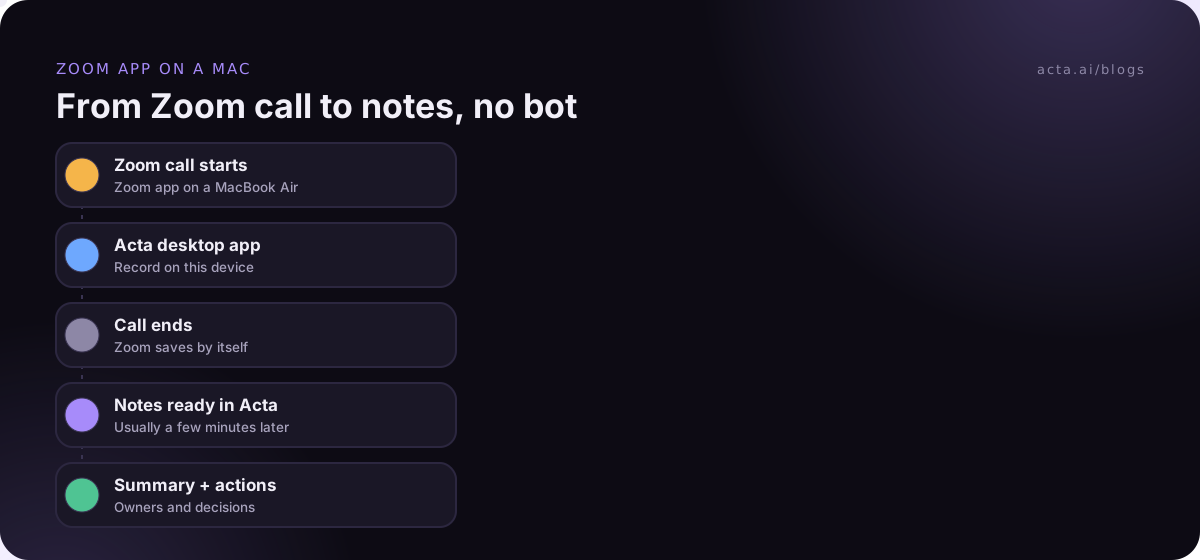
- Join the meeting in the Zoom app, the way you always do. Acta opens by itself and asks: Record on this device, Invite Acta bot, or dismiss.
- Click Record on this device. The small recording panel stays on top of your Zoom window with a timer, Pause and stop.
- Glance at the meters. When someone talks, Meeting sound should move. When you talk, Your mic should move. Five seconds of watching saves you from finding a silent recording later.
- Click Copy notice and paste it into the Zoom chat, so everyone knows the call is being recorded. Say it out loud too if it's a new client.
- End the meeting. A Zoom meeting stops and saves by itself. You can always click Stop & save if you want to end early.
- Open the notes. Under Recent meetings the call shows Saved, then Notes ready. Click Open for the summary, action items and transcript, or Copy link to share it.
If you'd rather not be asked every time, there's a setting called Record detected meetings automatically. My advice: leave it off for your first week. Clicking the button yourself is a good nudge to paste the notice. Once telling people is a habit, turn it on.
The desktop app guide in the Help Center has the full settings list if you want to tune the prompts, including Remind me 1 minute before.
What do you get after the call?
Notes aren't written during the meeting. Acta transcribes it once it's over, and the notes are usually ready a few minutes later. By the time I've refilled my coffee, there's:
- a transcript with speakers, where your voice is marked as you and the other voices are named from the conversation and your calendar invite;
- a summary, the decisions made, and action items with owners;
- a follow-up email draft you can edit and send;
- a meeting named after your calendar event, or "Zoom meeting" with the date if there wasn't one.
You can also ask questions across all your meetings in OneChat, which is handy when the client says "as we agreed last month" and you'd like to check. One honest trade-off: the Acta bot names speakers from the participant list, which is more exact than working it out from the audio. For a two-person call it rarely matters. For a twelve-person workshop, expect to fix a name or two.
What usually goes wrong on a Mac?
Acta wasn't running
No menu bar icon, no detection. This is the number one cause of "it didn't record". Turn on Launch at startup and it stops happening.
Something else was playing
Acta records everything you hear through the computer. If Spotify is going in the background or a video autoplays in another tab, it ends up in the recording. Pause the music before the call.
A permission got switched off
If the Meeting sound meter stays flat while people are clearly talking, check Screen & System Audio Recording first. If Your mic is flat, check Microphone. Nine times out of ten it's one of those two toggles.
You joined Zoom in the browser
The desktop app detects meetings in the Zoom and Teams apps, not in a browser. You've got two options. Open Acta, click Record on this device, then Start recording, and it'll work like any other calling app. Or use the Acta Chrome extension, which records Google Meet, Microsoft Teams in the browser and the Zoom web client. Our guide to the Zoom web client notetaker walks through that.
Do you have to tell people you're recording?
Yes. Bot-free doesn't mean secret. No bot joins, but it's good practice, and in many places the law, to tell everyone the meeting is being recorded and to get consent where the law requires it. Our post on recording meetings with AI and what to tell participants goes through the rules in more detail.
In practice I do two things. I paste Acta's notice into the chat with Copy notice, and I say one sentence at the start: "Quick heads-up, I'm recording this on my laptop so I can send notes afterwards. Shout if you'd rather I didn't." If someone says no, I stop the recording and take notes by hand. It doesn't happen often, and nobody has ever minded being asked.
When is the Acta bot the better choice?
Bot-free recording needs you in the meeting, because it records from your Mac. If you can't attend, the Acta bot can join from your calendar instead, as a participant called "Acta Notetaker" that the host has to admit. When the bot is in a meeting, the desktop app doesn't record it a second time. For the general Zoom picture, including the host-side options, see our broader guide on how to record a Zoom meeting, and if you also work on a PC, the Windows version of this guide covers the differences there.
Frequently asked questions
Does Acta record my screen on the Mac?
No. It records the meeting's sound and your microphone. It asks for "System Audio Recording Only", never screen recording, so the shared slides and faces in the call aren't captured.
Can I record Zoom meeting on Mac calls when I'm not the host?
Acta records on your own device, so it doesn't rely on the host granting Zoom's Allow Record. You still need to tell everyone and get consent where it's required. Our guide on recording a meeting when you're not the host covers the etiquette.
Does it work on an Intel Mac?
Yes, as long as it's on macOS 14.2 Sonoma or later. The download page offers a separate Intel file.
Will the other people on the Zoom call see Acta?
There's no bot in the participant list, so nobody sees a notetaker join. They'll see your recording notice if you paste it, which you should.
What happens when the 15-day trial ends?
Acta shows Upgrade instead of recording until you move to the Pro plan.
If your calls live in the Zoom app on a Mac, download the Acta desktop app, do the two-permission setup once, and see the plans page when your trial is up.