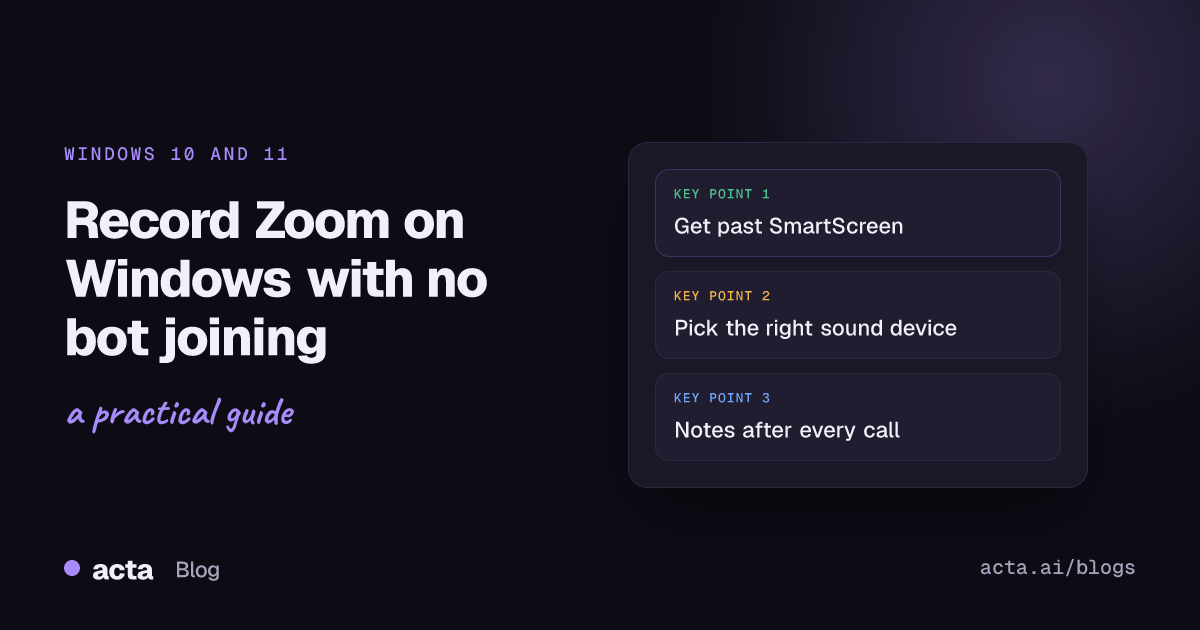
Quick answer: To record a Zoom meeting on Windows without a bot, download the Acta desktop app (Windows 10 version 1903 or later, or Windows 11). If "Windows protected your PC" appears, click More info, then Run anyway. Make sure "Let desktop apps access your microphone" is on, join your call in the Zoom app, and choose Record on this device.
Fair warning before anything else: the first time you run Acta's installer, Windows will probably tell you it "protected your PC". That blue screen puts people off, so I'm going to deal with it properly up front instead of hiding it in step four.
The rest of this is written from the setup I actually use: a Windows 11 ThinkPad on a USB-C dock, a wired headset, and an external monitor with its own little speakers. Three possible places for sound to go. Most "record Zoom meeting on Windows" guides skip that part. If your laptop looks like mine, the audio device section is the one to read twice.
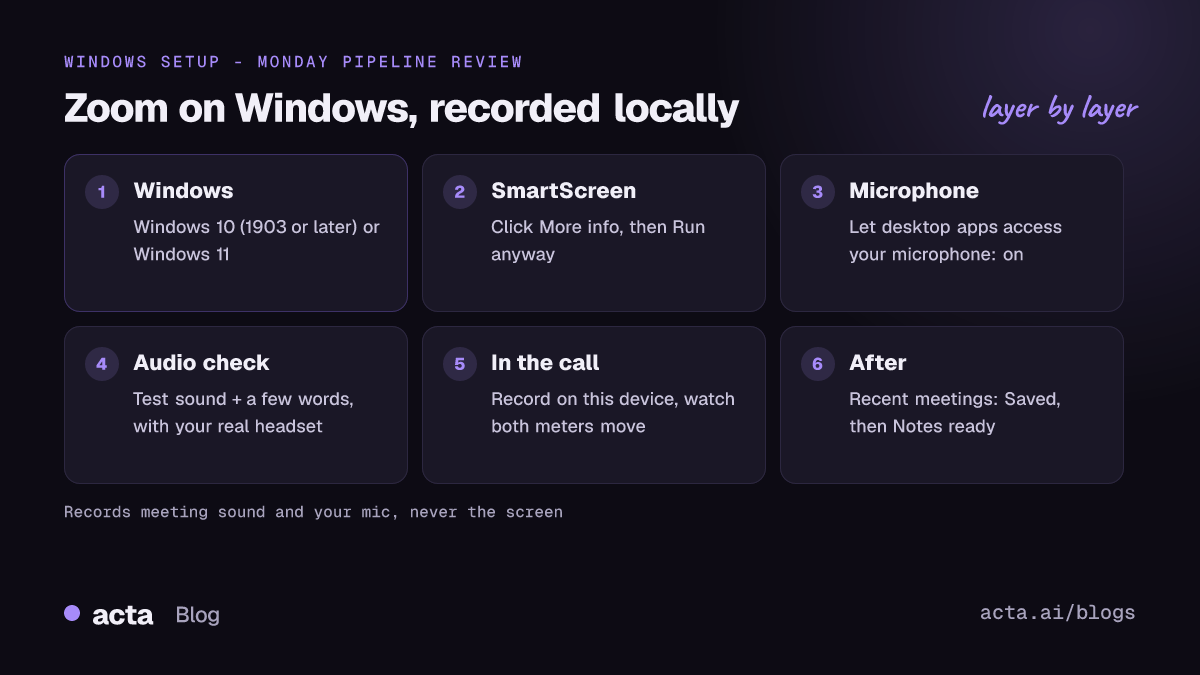
What do you need to record Zoom meeting on Windows calls?
- Windows 10 (version 1903 or later) or Windows 11. That's the floor for the Acta desktop app.
- The Zoom desktop app. Zoom's own system requirements for Windows list Windows 10 and 11, and note that Windows 10 needs the Home, Pro or Enterprise edition, with S Mode not supported (as of November 2026). If Zoom runs, you're fine.
- An Acta account. It starts with a 15-day free trial with unlimited recordings and transcriptions, and the desktop app is part of it.
- The headset you'll really use. Not the one in the drawer. You'll test with it in a minute.
What you don't need: host rights in Zoom, a paid Zoom licence, or anyone's permission to add a participant. Acta records on your laptop, so nothing joins the meeting. You do still need to tell people, and there's a section on that further down.
Why does Windows say "Windows protected your PC"?
Because the Acta installer for Windows isn't code-signed yet. Windows' SmartScreen filter warns about apps it doesn't have a reputation for. Microsoft's own page on SmartScreen reputation for app developers explains that new apps can trigger this warning until they build up a positive reputation. It's a "we don't know this one yet" screen, not a virus alert.
So when you see it:
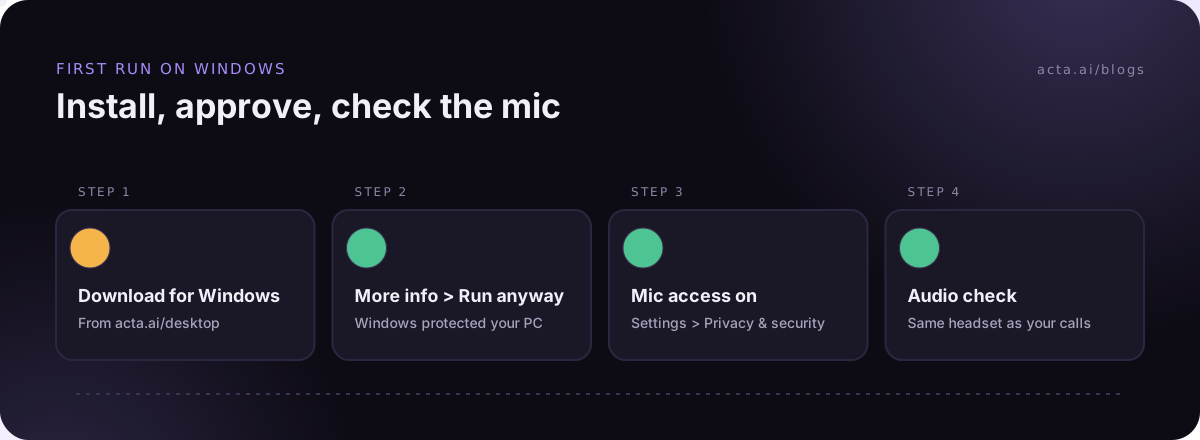
- Click More info (it's a small link, easy to miss).
- Click Run anyway.
Acta's own desktop page says the message goes away for everyone once the Windows app is code-signed. Until then, my rule is simple: only click Run anyway on an installer you downloaded yourself from the vendor's own download page, which here means acta.ai/desktop. Not from an email attachment, not from a file someone dropped in Slack.
On a company laptop, your IT team may have settings that stop you installing apps at all. If the Run anyway button simply isn't there, that's a conversation with IT, not something to work around.
How do you install Acta on Windows?
- Open the Acta desktop page. It shows Download for Windows first when you visit from a PC.
- Run the downloaded installer. Get past the SmartScreen screen as above, then follow the install prompts.
- Sign in to your Acta account when the app asks.
- Check microphone access. Acta's help says to make sure "Let desktop apps access your microphone" is on. In Windows 11 that's in Settings > Privacy & security > Microphone. Microsoft's page on turning on app permissions for your microphone notes that "Let apps access your microphone" needs to be on as well, since the desktop-app switch sits under it.
- Do the one-time audio check: play the test sound and say a few words, so Acta hears both the meeting and you.
- Optional, but I'd do it: turn on Launch at startup. Acta only notices meetings while it's running in the system tray.
On a work laptop the microphone switches are sometimes greyed out by policy. If they are, Zoom probably can't hear you either, so you'd have noticed. If Zoom works and Acta's mic meter doesn't move, look at that desktop-apps switch first.
Which sound device is Acta actually hearing?
This is where Windows setups go wrong, and it's rarely Acta's fault. Acta records the meeting's sound (everything you hear through the computer) and your microphone. It never records the screen. So the question is really: where is your laptop sending the call, and which mic is it listening to?
On my dock setup, Windows can switch the default output to the monitor speakers when I plug in, while Zoom keeps using the headset it remembers. Every combination of dock, headset and Bluetooth earbuds behaves a little differently, so I won't promise you how yours will. What I'll give you is the routine that catches it:
- Pick the output in Windows. Settings > System > Sound, and choose the right device under Output. Microsoft's guide to fixing sound problems in Windows shows this and the taskbar shortcut (the arrow next to the volume slider).
- Pick the same devices in Zoom. In Zoom's settings, open the Audio tab, play the test tone and record a test of your mic. Zoom's page on testing your audio settings covers this. Choose the headset for both speaker and microphone if that's what you'll use.
- Run Acta's audio check with that exact setup. Same headset, same dock, plugged in the way it'll be on Monday morning.
- Watch the meters in the first minute of the real call. More on that below.
And close the YouTube tab. Anything your laptop plays during the call is part of "everything you hear through the computer", including the playlist you forgot to pause.
Record Zoom meeting on Windows: what happens during the call
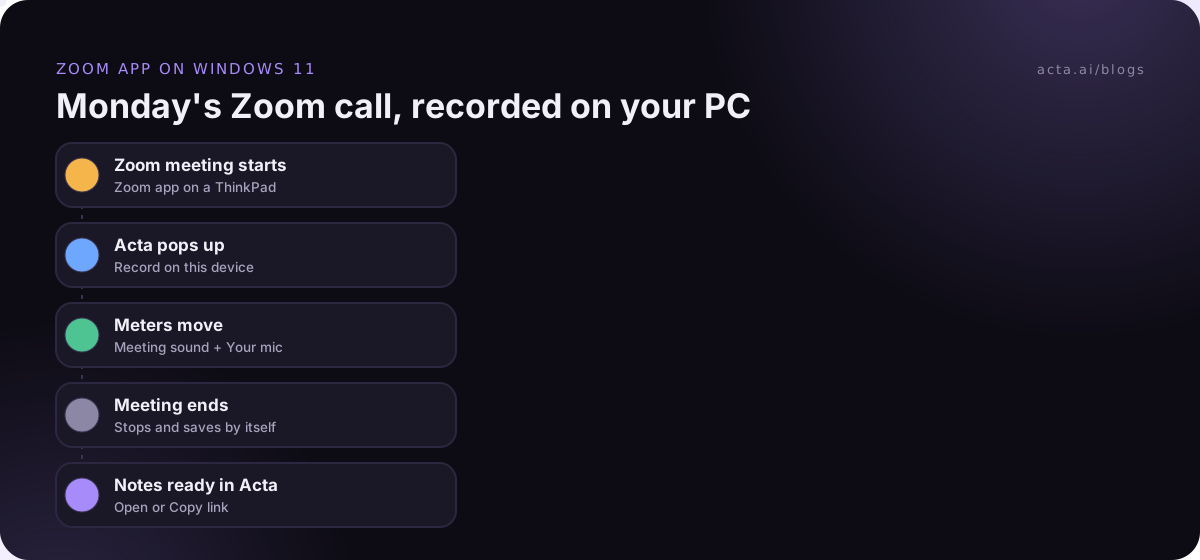
Take my Monday pipeline review as the example. It's a recurring Zoom meeting, I join from the Zoom app on the ThinkPad, and here's the sequence:
- Join in the Zoom app. Acta pops up by itself and offers Record on this device, Invite Acta bot, or dismiss.
- Choose Record on this device. A small recording panel sits on top of the meeting with the timer, Pause and stop.
- Check the two meters. Meeting sound moves when other people talk; Your mic moves when you do. If Meeting sound is flat while your manager is mid-sentence, go back to the sound device section.
- Click Copy notice and paste it into the Zoom chat.
- Finish the meeting. Zoom meetings stop and save by themselves. If you need to drop off early, click Stop & save.
For a recurring internal meeting where everyone already knows it's recorded, I'd turn on Record detected meetings automatically in Acta's settings, so it starts straight away. For client calls I leave the prompt on. The few seconds of clicking are a good reminder to say the recording line out loud.
Acta also detects meetings in the Microsoft Teams desktop app, including Teams free. Teams works slightly differently at the end (Acta asks "Did your Teams call end?"), and our guide to recording a Teams meeting without a bot covers that.
Where do the notes show up after the call?
In Acta, under Recent meetings. The call shows Saved, then Notes ready, usually a few minutes after it ends. Nothing is transcribed while you're still talking. Click Open to read it or Copy link to send it on.
For the pipeline review, what I actually use afterwards is the action items with owners and the decisions list. You also get the full transcript with speakers, a summary and a follow-up email draft. If you need to check what was said three Mondays ago, OneChat lets you ask across all your meetings.
One Windows-laptop detail I like: recordings are kept on your computer until they reach Acta. If the hotel Wi-Fi drops right after the call, the recording waits and uploads by itself when you're back online. And app updates never interrupt a recording; Acta installs them after the meeting.
Is Zoom's own recording a better option on Windows?
It depends on what you want out of it.
- Want a video file? Use Zoom's recorder. Acta captures sound only, never your screen. As of November 2026, Zoom's help pages say computer (local) recording is available on free and paid accounts but only the host can use it by default, and cloud recording needs a licensed Pro, Business or Enterprise account.
- Want notes, owners and a summary? That's what Acta is for, and it doesn't wait on the host to give you recording rights.
- Not attending yourself? Bot-free recording needs you in the meeting. Invite the Acta bot from your calendar instead; it joins as "Acta Notetaker" and someone has to admit it.
- In Zoom through Chrome? The desktop app doesn't detect meetings in a browser. You can open Acta and press Record on this device, then Start recording, or use the Acta Chrome extension, which records Google Meet, Microsoft Teams in the browser and the Zoom web client.
For host-side options in Zoom itself, our general guide on how to record a Zoom meeting goes through them. Mac users, there's a separate Mac guide with the macOS permissions.
How should you tell people you're recording?
Out loud and in writing. Bot-free does not mean secret. Tell people you're recording and get consent where the law requires it; in many places that's not optional. Our post on AI recording, consent and what to tell participants explains where the rules differ.
The Copy notice button handles the written part. For the spoken part, I keep it to one line at the top of the call: "I'm recording on my end for notes, I'll send the summary after. Any objections?" For a recurring internal meeting, a message to the team once is enough, plus a reminder whenever someone new joins. If anyone objects, stop recording and take notes the old way.
Frequently asked questions
Is it safe to click Run anyway on the Acta installer?
The warning appears because the Windows app isn't code-signed yet, and Acta says it'll go away once it is. Only click Run anyway on the installer you downloaded from acta.ai/desktop yourself.
Does Acta record my screen on Windows?
No. It records the meeting's sound and your microphone. Your screen is never recorded, so if you need the shared slides, use Zoom's own recorder as well (with the host's say-so).
Why is the Meeting sound meter flat?
Usually the call is playing through a device you didn't expect, like monitor speakers on a dock. Check the Output device in Windows sound settings, then Zoom's speaker setting, and run Acta's audio check again.
What if my laptop goes offline after the call?
The recording stays on your computer and uploads by itself when you're back online.
Does the trial include the Windows app?
Yes. The desktop app is included in your Acta plan, with a 15-day free trial. When the trial ends, Acta shows Upgrade instead of recording.
Ready to try it on your next call? Download the Acta desktop app for Windows, do the audio check with your real headset, and compare plans on the pricing page before the trial ends.