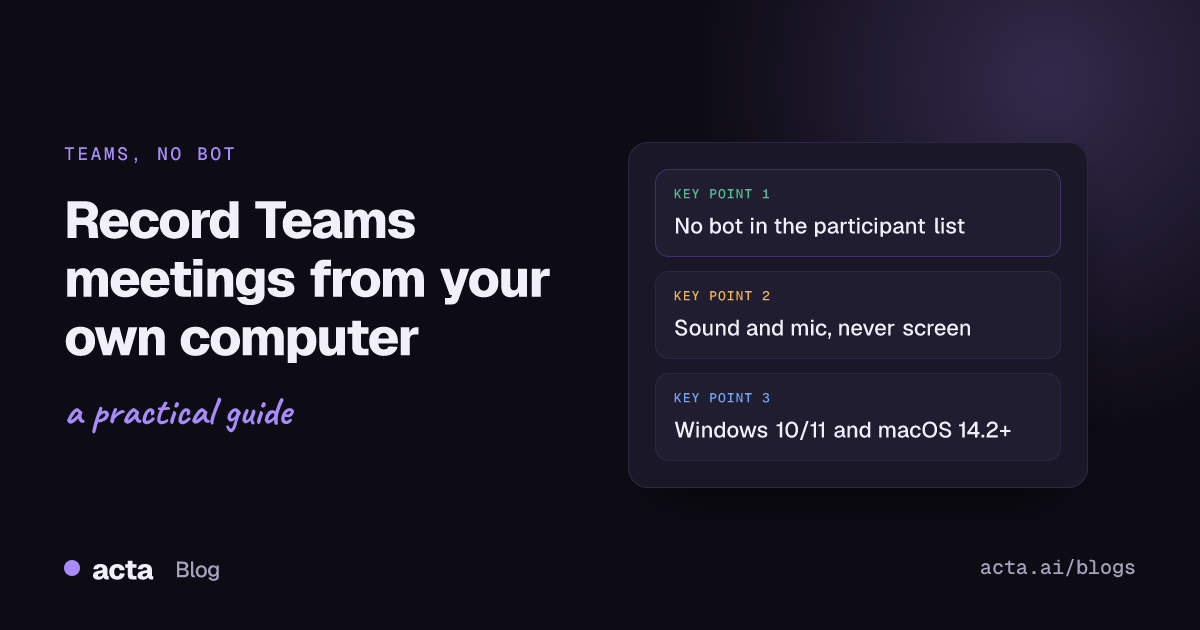
Quick answer: To record Teams meeting without a bot, install the Acta desktop app on Windows 10 (1903 or later), Windows 11 or macOS 14.2+, then join the call in the Teams app as usual. Acta notices the meeting and offers Record on this device. It captures the meeting's sound and your microphone, never your screen, and no notetaker shows up in the participant list.
Our Thursday sprint review runs in Teams. The organizer set "Who can record and transcribe" to organizers only months ago, and the one organizer is on holiday this week. Same story with a supplier call last month, except there I was a guest and Teams wouldn't even show me the option. And the bot? Their IT turns external notetakers away at the lobby.
So I record from my own laptop instead, with the Acta desktop app. This guide covers why the Teams button is locked, how to set up the Acta desktop app on Windows and on a Mac, what you see during the call, and the handful of things that actually go wrong.
Why is the Teams record button greyed out?
If you've hit a Teams record button greyed out (or showing a lock), Teams is usually telling you about a permission, not a bug. Microsoft's own page on why you can't record a meeting in Teams says to hover over the lock icon on Start recording; the tooltip names the reason. As of November 2026, the common ones are:
- The organizer limited who can record. The meeting option "Who can record and transcribe" can be set to organizers and co-organizers only, or to no one.
- You're an attendee, not a presenter. Attendees don't get the button.
- You're a guest or external user. Microsoft says plainly that guests can't record meetings.
- Your IT admin's policy doesn't allow it. Admins decide whether recording is allowed at all, and Microsoft notes changes can take time to apply.
- Licensing. Both the organizer and the person recording need a qualifying license.
Microsoft's admin guide on Teams recording policies adds the part that surprises people: both the organizer and whoever starts the recording need recording permission. So even if your own company allows it, the other side's settings can still block you. If you do have the button and just want the built-in route, our guide on how to record a Teams meeting with Teams' own recorder walks through it.
What does bot-free Teams recording actually mean?
A meeting bot is an extra participant. Acta's is called "Acta Notetaker", it joins from your calendar, and someone lets it in from the lobby. That works well for meetings you can't attend. It's also the bit that gets noticed, questioned, or blocked by the other company's IT (we wrote about why companies block meeting bots if you want the background).
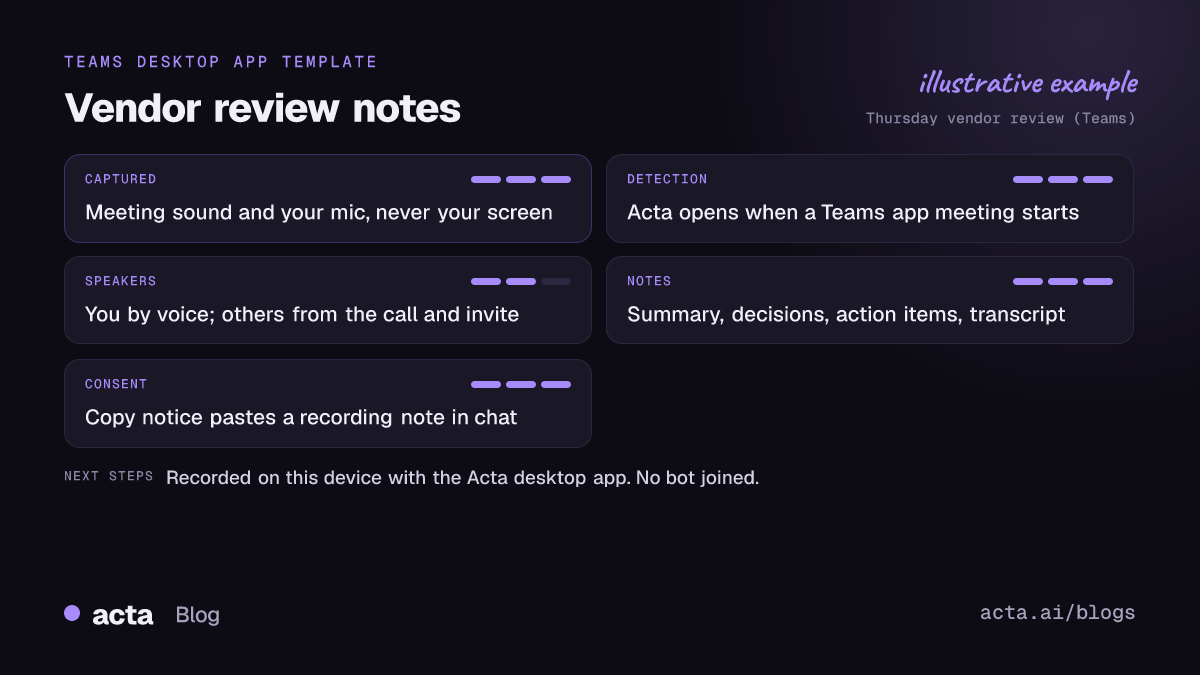
Bot-free Teams recording skips the extra participant. The Acta desktop app runs on your computer and records two things: the meeting's sound (everything you hear through the computer) and your microphone. Never your screen. There's nothing to add to anyone's Teams tenant, and the notes are the same ones the bot produces: transcript with speakers, summary, decisions, action items with owners and a follow-up email draft.
The trade-off is simple. You have to be in the meeting, on that computer, with it switched on for the whole call. If you can't attend, the bot is still the better tool. The bot-free notetaker page lays out the three bot-free options side by side.
How do you record Teams meeting without a bot on Windows?
Setup is a one-time job. Just don't leave it until two minutes before the call.
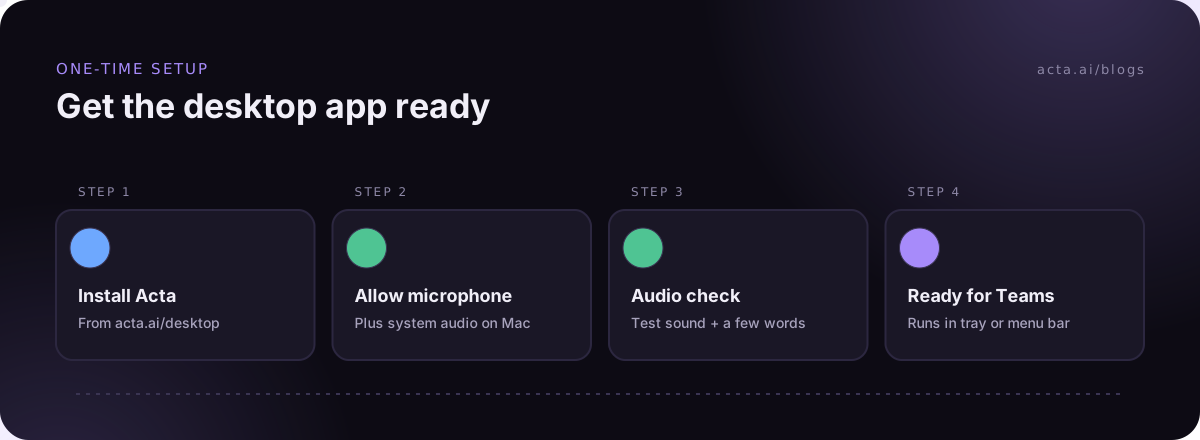
1. Install the app
Download it from the Acta desktop app page. It needs Windows 10 (version 1903 or later) or Windows 11. One thing to expect: the Windows installer isn't code-signed yet, so Windows may show a blue "Windows protected your PC" screen. Click More info, then Run anyway. That message goes away once the app is signed.
2. Check the microphone switch
"Let desktop apps access your microphone" has to be on, or Acta records the other people and not you. Microsoft's page on microphone permissions in Windows puts it under Settings, Privacy & security, Microphone. On Windows 10 the wording is slightly different ("Allow desktop apps to access your microphone"), same idea.
3. Run the audio check
The first time, Acta asks you to play a test sound and say a few words, so it knows it can hear both the meeting and you. Do it with the headset you'll actually use on calls. I've seen people pass the check on laptop speakers and then join every meeting on a USB headset they never tested.
What changes when you record a Teams call on a Mac?
The app works on macOS 14.2 Sonoma or later, on Apple chip and Intel Macs. The download page picks the right file for you, and there's a link under the button if you need the other one. Drag Acta into Applications. The Mac app is signed and notarized by Apple, so it opens with a normal double-click.
macOS then asks for two permissions:
- Microphone, for your voice.
- System Audio Recording Only, for the other people's voices. It lives in System Settings, Privacy & Security, Screen & System Audio Recording.
Apple's guide to screen and system audio recording access explains that each app in that list can be allowed to record the screen and audio, or just the audio. Acta only needs the audio, and it never asks to record your screen. If you clicked Don't Allow by accident (it happens on the first run), that settings pane is where you fix it.
What do you see when the Teams call starts?
This is the part I like. You don't open Acta first. You join the Teams call the way you always do, in the Teams app (Teams free works too), and Acta pops up by itself.
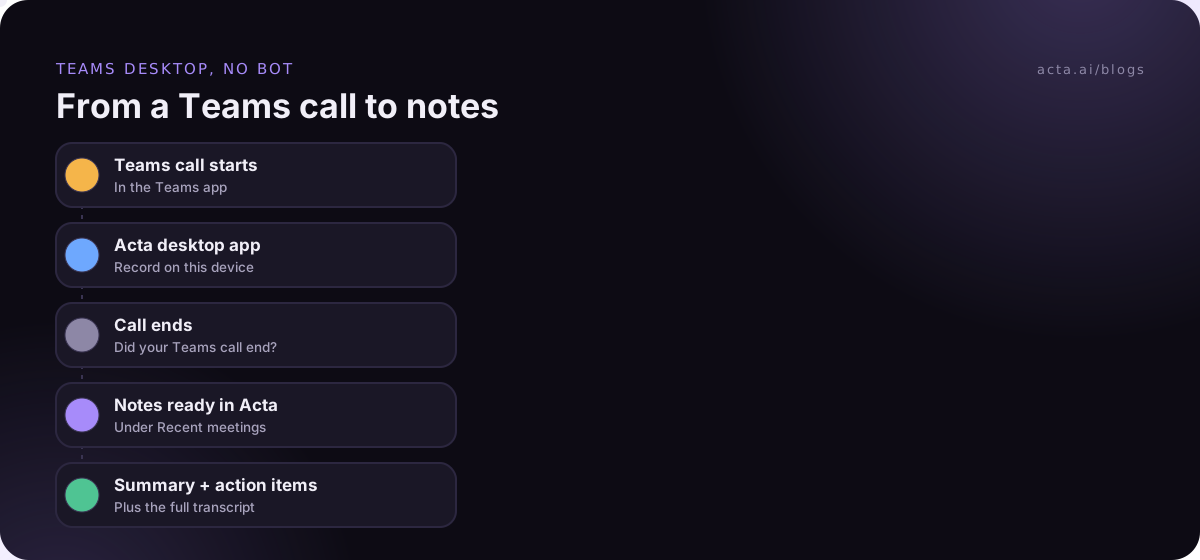
- Join the meeting in the Teams app. Acta opens and asks: Record on this device, Invite Acta bot, or dismiss.
- Pick Record on this device. If you've turned on Record detected meetings automatically in settings, it starts straight away without asking.
- Watch the Meeting sound and Your mic meters for a few seconds. Both should move as people talk.
- A small recording panel stays on top of the meeting with the timer, Pause and stop.
- Click Copy notice and paste it into the Teams chat, so everyone knows the call is being recorded.
One catch: Acta only notices meetings while it's running in the system tray (or the menu bar on a Mac), and only in the Zoom and Teams apps. Turn on Launch at startup and you'll stop forgetting. There's also Remind me 1 minute before if you'd like a nudge ahead of calendar meetings.
How do you stop, save and find the Teams meeting transcript?
Zoom meetings stop and save by themselves when they end. Teams is a bit different: when the call looks finished, Acta asks "Did your Teams call end?" Say yes, or click Stop & save on the panel any time.
Under Recent meetings the call shows Saved, then Notes ready, usually a few minutes after the meeting. Click Open for the summary, action items and the full Teams meeting transcript, or Copy link to drop it into a Slack thread. Acta transcribes once the call is over, so don't expect text to scroll by during the meeting.
A few details that help when you're looking for last Tuesday's call:
- Names. On Windows the meeting is named after the Teams meeting window. Otherwise it takes your calendar meeting's name, or falls back to "Teams meeting" with the date.
- Speakers. Your voice is marked as you. Other voices are named from the conversation and your calendar invite. (The bot names speakers from the participant list, which is more exact, so if speaker labels matter a lot, that's a reason to use it.)
- Bad Wi-Fi. Recordings stay on your computer until they reach Acta. If you're offline, they wait and upload by themselves later.
Once it's in Acta, you can ask OneChat things like "what did we agree on pricing with the vendor last month?" across all your meetings, which is where recording every call starts paying off.
What usually goes wrong?
After a lot of Teams calls recorded this way, the problems are almost never the app. They're these:
- Acta wasn't running. No tray icon, no detection. Launch at startup fixes it.
- A flat meter. If Your mic doesn't move, check the Windows microphone switch or the Mac permission. If Meeting sound doesn't move, it's usually the Mac's System Audio Recording permission.
- Spotify in the background. Acta records everything you hear through the computer, so pause music and videos while you record.
- Teams in a browser. The desktop app doesn't detect meetings in a browser. You can open Acta and press Start recording yourself, or use the extension; our guide to record Microsoft Teams in browser tabs with the Chrome extension covers that route.
- The bot and the app both turned up. They won't record twice: when the Acta bot is in a meeting, the desktop app doesn't also record it on your computer.
If detection still seems off, open Settings, then Check detection, click Copy report and send it to support@acta.ai.
Do you still have to tell people when you record Teams meeting without a bot?
Yes. Bot-free does not mean secret. No bot appears, and Teams doesn't show its own recording banner for a recording it isn't making, so the only way people find out is if you tell them. Say it at the start ("I'm recording this for notes, shout if that's a problem") and paste Acta's Copy notice text into the chat so there's a written record too.
Tell people you're recording and get consent where the law requires it. Rules differ by country and state, and some calls (hiring, healthcare, client calls in finance) have their own expectations. Our guide on whether it's legal to record meetings with AI and what to tell participants goes through it properly.
Being able to record Teams as a guest from your own laptop doesn't override the other side's wishes either. If the organizer locked recording on purpose, ask before you start.
Frequently asked questions
Does the Acta desktop app record my screen or shared slides?
No. It records only the meeting's sound and your microphone. Your screen is never recorded, which also means a slide deck someone shares won't be in the recording.
Does it work with Teams free and personal accounts?
Yes. Acta notices meetings in the Microsoft Teams desktop app, including Teams free, and offers to record them on your device.
Can I record a Teams call if I'm not the organizer?
The app doesn't depend on Teams' Record button, so the organizer's settings don't stop it. You still need to tell people and get consent where required. For more on recording as an attendee, see our roundup of AI note takers for Microsoft Teams.
What happens when the free trial ends?
Acta has a 15-day free trial with unlimited recordings and transcriptions. After that, the app shows Upgrade instead of recording until you move to Pro (or Enterprise). A recording that's already running is never cut off. Plans are on the pricing page.
Can I see the transcript during the meeting?
No. Acta transcribes after the call, and the notes are usually ready a few minutes later.
If your next Teams call is with someone whose Record button you can't touch, download the Acta desktop app for Windows or Mac now and run the audio check before the invite starts.