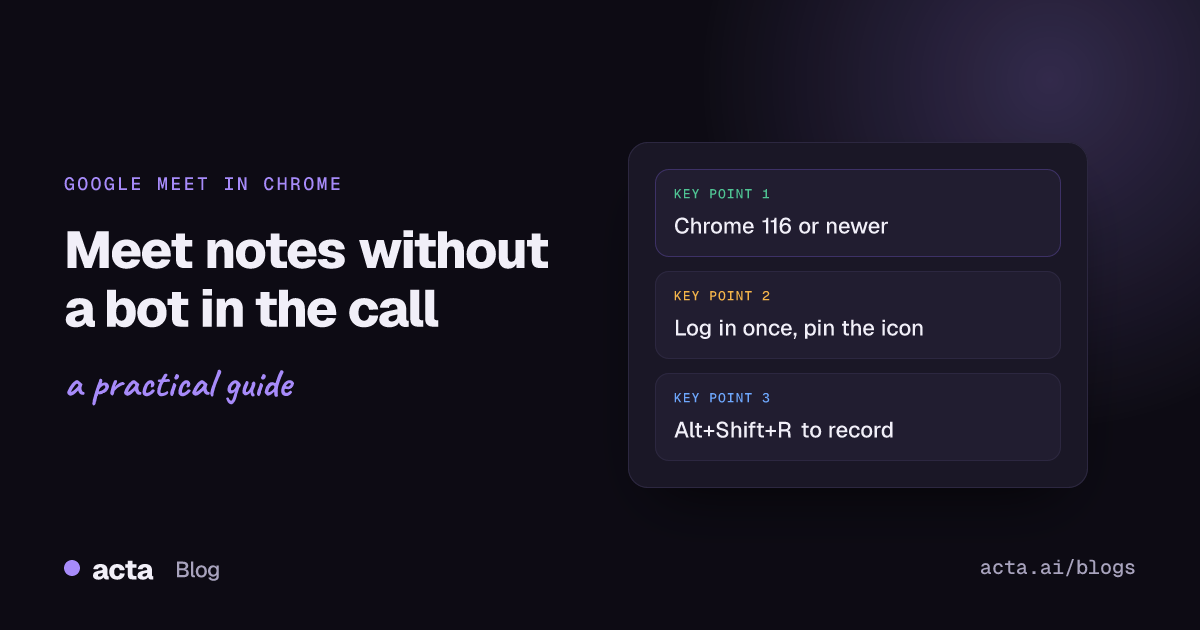
Quick answer: The simplest bot-free notetaker for Google Meet is a Chrome extension that records from your own browser. With Acta: add the extension from the Chrome Web Store (Chrome 116 or newer), log in once, pin it, join your Meet call in Chrome and press Start recording or Alt+Shift+R. The transcript, summary and action items appear in Acta after the call.
There are three ways to end a Google Meet call with notes. Google's own tools, if your Workspace edition and admin allow them. A notetaker bot that joins as an extra participant. Or something running in your own Chrome tab that nobody else sees join. This guide is about the third, using the Acta Chrome extension, with an honest look at the other two so you can pick.
I'll use a real-ish example throughout: a Tuesday design review on Meet with four people, two of them from a client's team. That's exactly the kind of call where a bot gets left in the lobby and where Google's built-in notes may not be switched on for you.
What is a bot-free notetaker for Google Meet?
It's an AI notetaker that records the meeting from your own device instead of joining the call as a participant. Nobody sees a bot in the participant list, but you still get a transcript, summary and action items afterwards.
With the Acta extension, the recording happens in the Meet tab you're already in. Speaker names are picked up from the meeting, so the transcript shows who said what. The notes are written once the meeting is over, not during it, and they're usually ready a few minutes later.
What it isn't: a hidden recorder. You still tell people. There's a section on that below, and it's not optional.
How do you install the Acta Chrome extension?
These steps match Acta's Chrome extension guide in the Help Center, which is worth keeping open in another tab the first time.
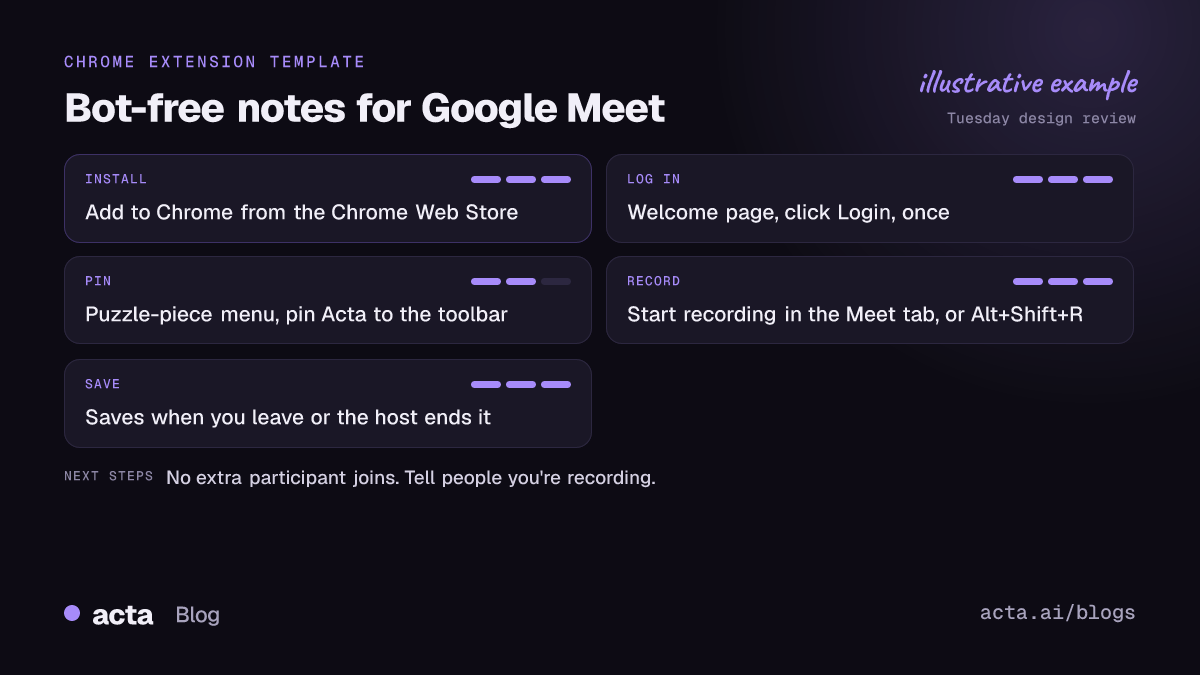
- Add the extension to Chrome. Go to the Acta Chrome extension page or straight to the Acta listing in the Chrome Web Store and add it. It needs Chrome 116 or newer.
- Log in. A welcome page opens. Click Login and sign in to Acta. You only do this once: the extension stays logged in.
- Pin it. Click the puzzle-piece menu in Chrome's toolbar and pin Acta, so the icon is always there. Skip this and you'll spend the first thirty seconds of your next call hunting for it.
Installing it is free, and it's included in every Acta plan, so you can use it during the 15-day free trial.
How do you take notes in a Google Meet call with the extension?
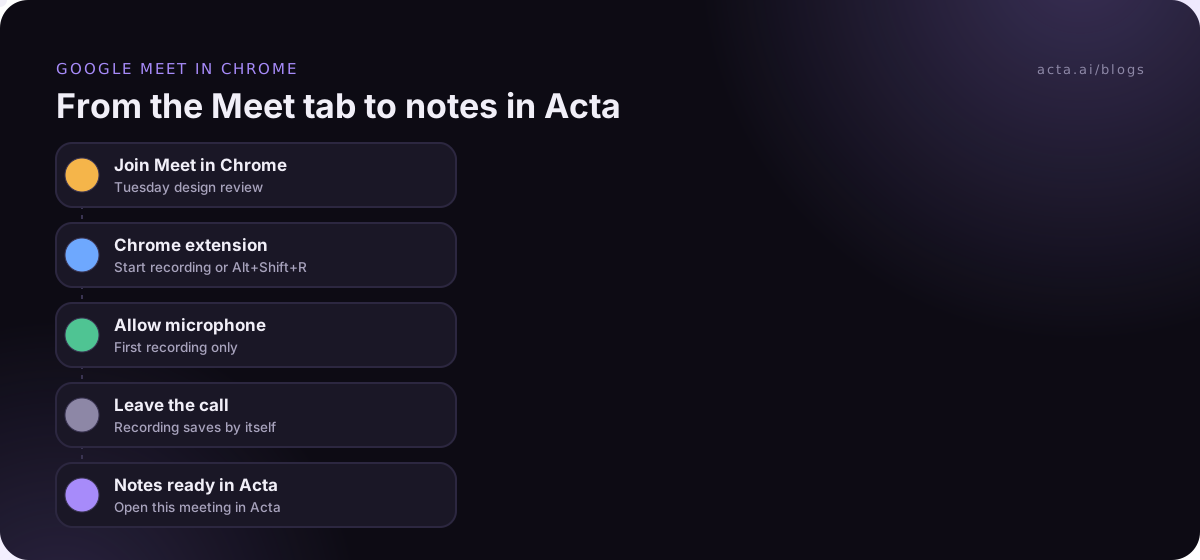
- Join the meeting in a Chrome tab, as you normally would.
- Click the Acta icon in the toolbar and press Start recording, or press Alt+Shift+R. The popup knows which meeting you're in.
- First time only: Acta asks for microphone access, so your own voice ends up in the transcript. Click Allow, and recording starts by itself.
While it records, a small Acta window in the meeting shows the timer and who is speaking. That's your confirmation it's working. I glance at it once, when the first person from the other side talks, and then forget about it.
If Chrome asks you to share the tab, click Share and keep "Also share tab audio" on. Without the meeting sound Acta doesn't start, and it tells you what to change.
Things that won't break the recording
- Reloading the Meet page.
- Presenting your screen.
The thing that will
Closing the meeting tab. That stops the recording and saves it, which is fine if the meeting's over and annoying if you closed the wrong tab.
What happens when the Google Meet call ends?
Recording stops and saves by itself when you leave the meeting or the host ends it. You can also click Stop & save yourself, and occasionally you should: if Meet changes its buttons, Acta keeps recording rather than stopping by mistake, so it's worth a glance at the window when you leave.
To get to your notes, click Open this meeting in Acta in the window, the Meeting saved to Acta notification, or Last meeting in the popup. The transcript and summary appear on the meeting's page once Acta has processed it.
For the Tuesday design review, that page gives me a transcript with speakers, a summary, the decisions, action items with owners, and a follow-up email draft I can tidy and send to the client. Later, OneChat lets me ask things like "what did we decide about the mobile layout?" across every meeting, which beats scrolling.
The recording is uploaded while the meeting runs. If Acta can't be reached (flaky café Wi-Fi, say), it's kept in Downloads/Acta Recordings instead, so you don't lose it.
How is this different from Google Meet's own recording and notes?
Google has good built-in tools. Whether you can use them depends on your account, which is the whole problem. As of November 2026, here's what Google's help pages say:
- Recording. Google's page on recording a video meeting says recording depends on your Workspace edition and on your admin turning it on, and recordings are saved to the meeting organizer's Drive. If you're the guest, it's not your Drive.
- "Take notes for me". Gemini's note-taking in Meet is available only if your Google account was set up through work or school, or if you have an eligible Google AI plan, according to Google's "Take notes for me" help page. It supports a set list of languages, one language per meeting, and admins can switch it off.
- Transcripts. Meet's transcripts feature is available on many Workspace editions, and the file goes to the organizer's Drive.
If you're the organizer on a Workspace plan that includes these, use them; they're well built. The extension earns its place when you're a guest in someone else's meeting, when your account doesn't include Gemini notes, or when you want every meeting's notes in one place regardless of who sent the invite. Our deeper comparison of the best AI note taker for Google Meet and the guide to Google Meet recording go further.
Extension or meeting bot: which notetaker for Google Meet should you use?
Acta does both, so I don't have an axe to grind here. The trade-offs are real:
The bot
The Acta bot joins from your calendar as "Acta Notetaker" and, if the meeting has a waiting room or lobby, someone has to let it in when it asks to join. Hosts control this with Meet's access settings: Google's tips on controlling meeting access describe Open, Trusted and Restricted meetings, where people who aren't invited the right way have to knock. On a client's Restricted meeting, a bot knocking is exactly what gets declined. The upside is that the bot can attend when you can't, and it names speakers from the participant list.
The extension
No knock, no extra tile, nothing to admit. The catch is that it needs you in the meeting, in Chrome, on your computer. If you can't attend, the extension can't help.
My default: extension for any call I'm in, bot for the occasional meeting I need covered but can't join. The bot-free notetaker page lays out the other options too, including the Acta desktop app for meetings in the Zoom or Teams desktop apps.
What usually trips people up?
- The icon isn't pinned. Pin it once and use Alt+Shift+R as a backup. You can change the shortcut at chrome://extensions/shortcuts if it clashes with something.
- The meeting is in a different browser. The extension lives in Chrome. If your calendar opened Meet in another browser, copy the link into Chrome.
- The Acta window doesn't appear. It only shows once you're in a meeting, not on the Meet home page. Join the call first.
- The trial ran out. On the free trial the window shows the days left. After 15 days, Start recording is turned off until you upgrade, but a recording already running is never stopped.
The same extension also records Microsoft Teams in the browser and the Zoom web client, so if a client sends a Zoom link and you join in Chrome, the Zoom web client guide applies.
Do you need to tell people you're recording?
Yes. No bot joins, but it's good practice, and in many places the law, to tell everyone the meeting is being recorded and to get consent where the law requires it. Bot-free doesn't mean secret. Our post on recording meetings with AI, consent and what to tell participants covers the details.
At the start of the Tuesday review I type one line into the Meet chat and say it out loud: "I'm recording this for notes, I'll share the summary afterwards. Let me know if that's a problem." If it is, I stop and take notes by hand. Most people say "sure" and we get on with it.
Frequently asked questions
Does a bot join my Google Meet call?
No. The extension records from your browser, so no extra participant joins the call.
What permissions does the extension need?
Microphone access, so your own voice is in the recording. The first time, Acta asks for it; click Allow.
Can I see the transcript during the meeting?
No. Acta transcribes the meeting once it's over, and the notes are usually ready a few minutes later.
Is the notetaker for Google Meet free?
Installing the extension is free and it's included in every Acta plan, including the 15-day free trial. After the trial, recording needs Acta Pro.
Where can I find the full setup guide?
The Acta Chrome extension guide in the Help Center has every step and the troubleshooting notes.
Want notes from your next Meet call without a bot in the room? Add the Acta Chrome extension, pin it, and keep the Help Center guide handy for the first run.