Quick answer: To record any call on your computer without a bot, install the Acta desktop app (Windows 10 or 11, macOS 14.2 or later), open it, click Record on this device, then Start recording. It captures the call's sound and your microphone, so it works with Webex, Slack huddles, WhatsApp or Google Meet in a browser. Tell everyone first.
Last month a "quick" Slack huddle with our designer turned into the meeting where we changed the onboarding flow. Twenty minutes, three decisions, zero notes. Nobody had thought to record it because it wasn't a Zoom call with an invite and an agenda. It was just two people and a green headphone icon.
That's the gap this post is about. Most recording advice assumes Zoom, Teams or Meet. But a lot of real work happens on whatever app the other person happens to use: a client who only does WhatsApp calls, a partner on Webex, a contractor who sends a Meet link and joins from a browser. If you want to record any call on your computer, not only the ones with a Zoom link, the method is the same every time. Here's how I record all of those with the Acta desktop app, and the setup details that decide whether the recording is any good.
How can one app record any call on your computer?
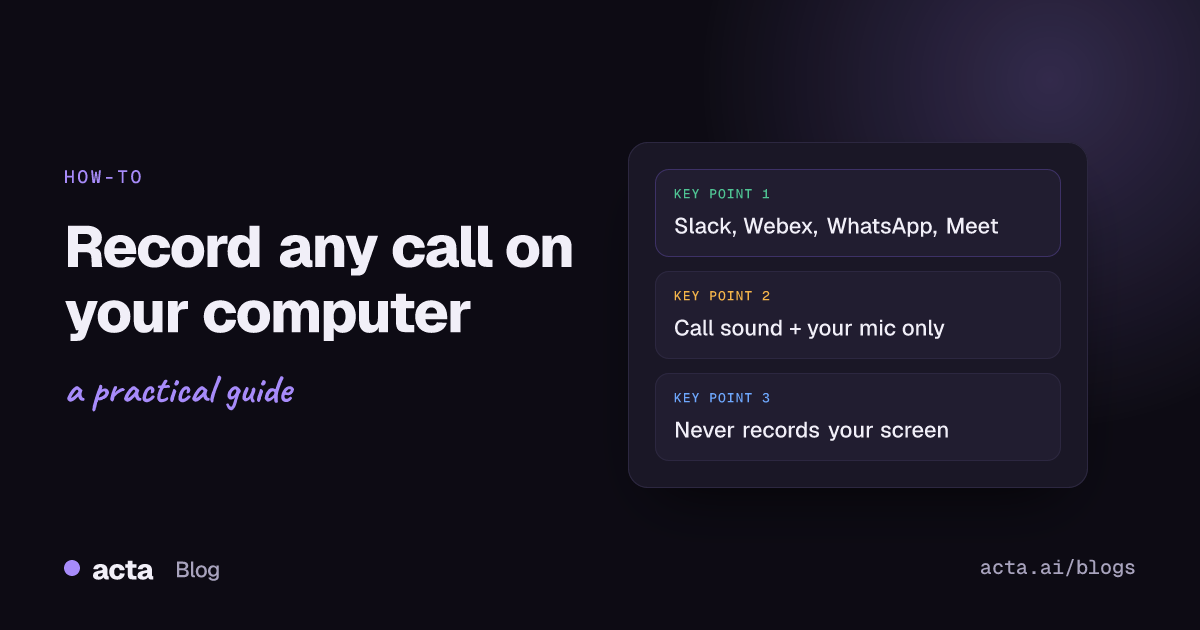
Because it doesn't plug into the calling app at all. The Acta desktop app records two things: the meeting's sound (everything you hear through the computer) and your microphone. It never records your screen.
That's the whole trick, and it has a few consequences worth knowing up front:
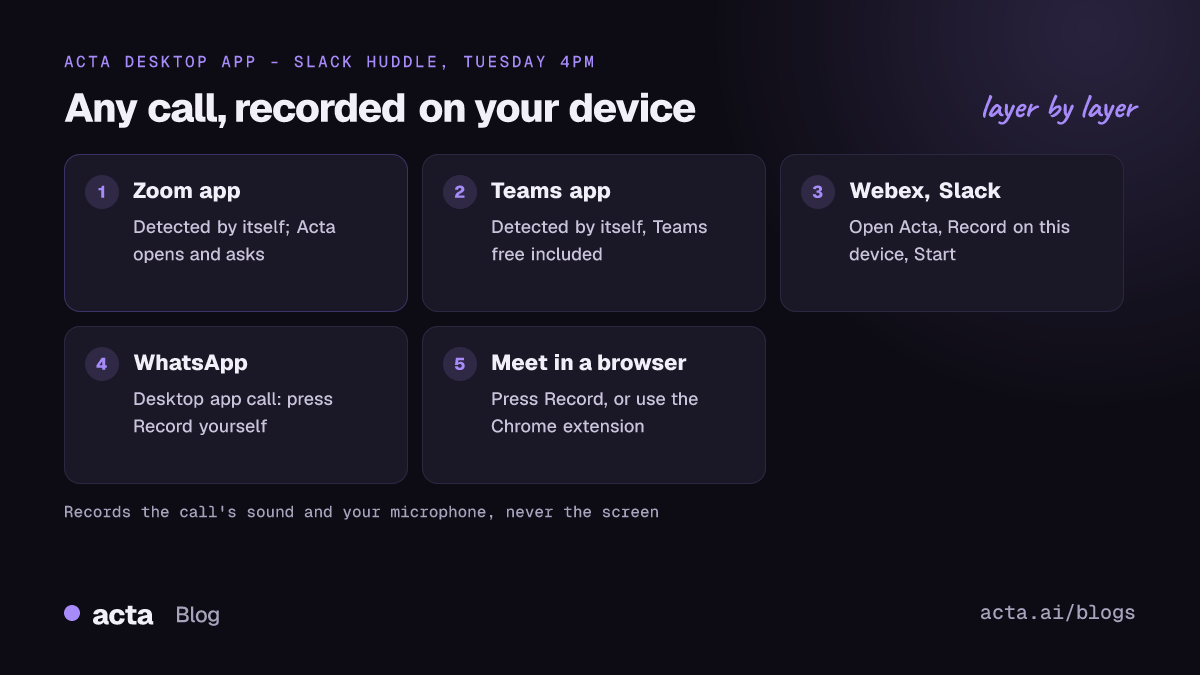
- The calling app doesn't matter much. If the other person's voice comes out of your computer, Acta can record it. That's why Webex, Slack huddles, WhatsApp and Google Meet in a browser all work the same way.
- No one joins the call. There's no bot in the participant list, because there's no participant at all. Nothing to admit, nothing for a host to block.
- Everything else you hear gets recorded too. A Spotify playlist, a video in another tab, the ding of a calendar reminder. Pause music and videos before you start.
Zoom and Microsoft Teams get special treatment. Acta notices a meeting in the Zoom or Teams desktop app (including Teams free) and opens by itself. For everything else, you press record. That's one extra click, and in my experience it's the click people forget, so I'll come back to it.
What do you need before you start?
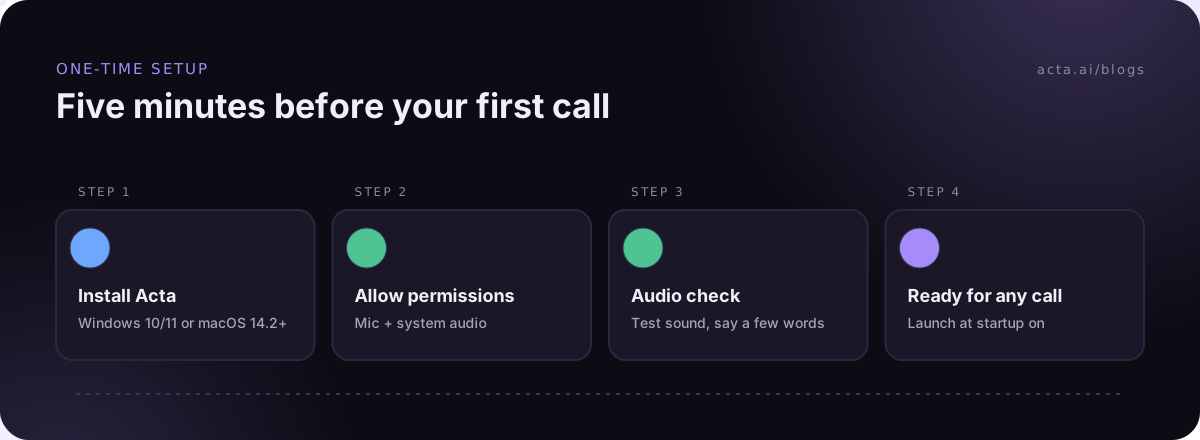
- A Windows 10 (version 1903 or later) or Windows 11 PC, or a Mac on macOS 14.2 Sonoma or later. Apple chip and Intel both work.
- An Acta account. New accounts get a 15-day free trial with unlimited recordings and transcriptions.
- Five minutes the first time, for permissions and an audio check. After that it's two clicks per call.
Download it from the desktop app page. The page puts your own system first, and on a Mac it picks the Apple chip or Intel file for you.
How do you set up the desktop app to record any call?
Do this once, ideally not two minutes before an important call.
- Install it. On a Mac, drag Acta into Applications. The Mac app is notarized by Apple, so it opens with a normal double-click. On Windows, run the installer. The Windows installer isn't code-signed yet, so Windows may show "Windows protected your PC". Click More info, then Run anyway. It looks alarming the first time; it's a known message for unsigned installers.
- Allow the permissions. On a Mac, allow Microphone and System Audio Recording Only when asked. If you missed the prompt, they're in System Settings, then Privacy & Security, then Screen & System Audio Recording. Apple's guide to controlling access to screen and system audio recording shows where that list lives, and its page on microphone access on Mac covers the mic side. Acta never asks to record your screen. On Windows, make sure "Let desktop apps access your microphone" is on; Microsoft's article on turning on app permissions for your microphone shows the exact switch.
- Run the audio check. Acta asks you to play the test sound and say a few words, so it hears the meeting and you. Do it with the headphones and mic you'll really use on calls.
- Turn on Launch at startup. It's optional, but Acta only notices meetings while it's running, so I'd switch it on.
How do you record a Slack huddle, Webex or WhatsApp call?
Same steps for all of them:
- Join the call in its own app, or in your browser for Google Meet.
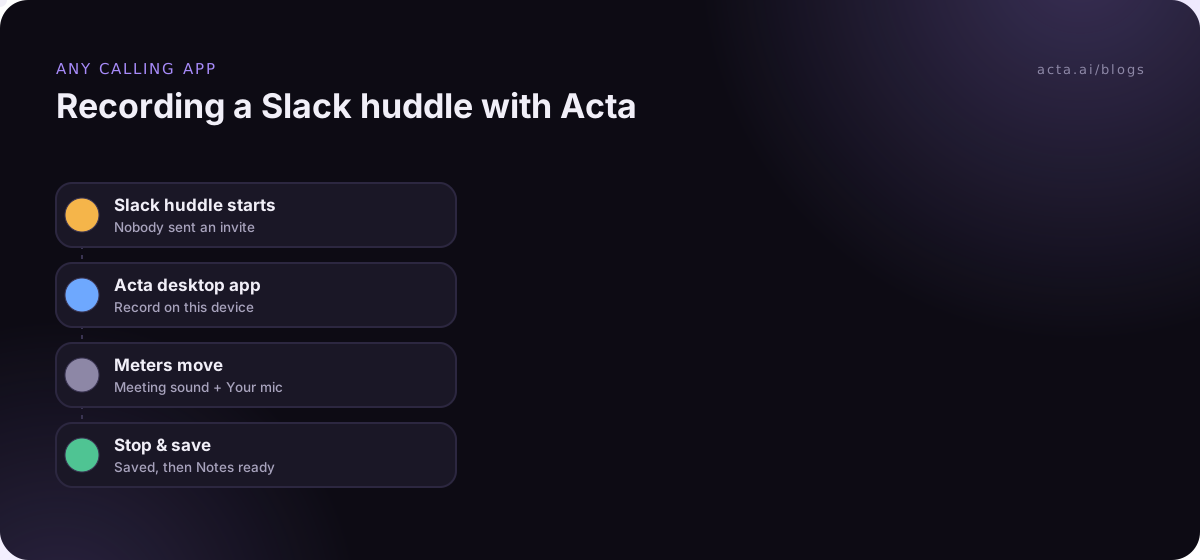
- Open Acta and click Record on this device, then Start recording. Acta finds the meeting app and the meeting's name by itself.
- Check the two meters. Meeting sound should move when the other person talks, and Your mic when you do. If one is flat, stop and fix it now, not after forty minutes.
- Click Copy notice and paste it into the call's chat, so everyone knows you're recording. (On a WhatsApp call, the chat with that person works fine.)
- When you're done, click Stop & save.
The small recording panel stays on top of your call the whole time, with the timer, Pause and stop. Pause is handy when someone says "can we go off the record for a second?" and you'd like to honor that without ending the recording.
Zoom and Teams are even easier
In the Zoom or Teams app, Acta opens by itself and offers Record on this device, Invite Acta bot or dismiss. Turn on Record detected meetings automatically and it starts straight away. A Zoom meeting stops and saves by itself when it ends; for Teams, Acta asks "Did your Teams call end?". We have separate walkthroughs for recording Zoom on Windows and recording Zoom on a Mac.
What about Google Meet?
Meet in a browser works with the desktop app as above. If you live in Chrome, the Acta Chrome extension is the other route: it records Google Meet, Microsoft Teams in the browser and the Zoom web client, and the Chrome extension guide walks through it. Pick one per meeting, not both.
Should you use headphones or speakers?
Headphones, almost always, and mostly for the other people's sake. On speakers, your microphone picks up their voices coming out of your laptop and sends them back, which gives everyone else that annoying echo. It also means your mic track is full of their voices as well as yours.
Wired earbuds are the boring, reliable choice. Bluetooth headphones are fine too, with one caution from experience: some headsets sound noticeably thinner once their own microphone is in use. If yours do, keep the headphones for listening and use the laptop's built-in mic or a USB mic for speaking.
Whatever you use, run the audio check with that exact setup. If the meters move during the check, you're good.
How do you choose the right microphone?
This is the setting that ruins the most recordings, and it's rarely Acta's fault. The usual story: a Windows 11 laptop on a dock, with a webcam that has its own mic. The system quietly picks the webcam mic, which is an arm's length away pointing at the wall, and your half of the conversation sounds like it was recorded in a stairwell.
A few rules I stick to:
- Use the same mic in the calling app and on your computer, so what you hear yourself saying is what Acta records.
- Closer beats fancier. A cheap headset mic near your mouth beats a good mic across the desk.
- Watch Your mic in the first ten seconds of every call for the first week. After that you'll trust it.
What happens after you hang up?
Under Recent meetings, the call shows Saved, then Notes ready, usually a few minutes later. Click Open for the summary, action items and transcript, or Copy link to share it. You also get decisions, owners on the action items and a follow-up email draft.
Some details that surprised me the first week:
- Names. A call with no calendar event behind it is named "Desktop meeting" with the date. With a calendar meeting behind it, it takes that name instead.
- Speakers. Your voice is marked as you. Other voices are named from the conversation and your calendar invite, so on a two-person WhatsApp call it's usually obvious who's who.
- Offline. Recordings are kept on your computer until they reach Acta. On a patchy hotel connection they wait and upload by themselves when you're back online.
- Updates. They never interrupt a recording. Acta installs them after the meeting.
Do you have to tell people you're recording?
Yes. Bot-free does not mean secret. Tell people you're recording and get consent where the law requires it. With no bot in the participant list, nobody gets a visual cue, so the job is entirely yours.
My habit is one sentence at the start: "I'm recording this so I don't have to type notes while we talk, is that okay?" Then I paste the Copy notice text into the chat so there's a written record. If someone says no, I stop and take notes by hand. Our guide to recording meetings with AI and getting consent covers the legal side in more detail.
What can't the desktop app do?
Be clear about the limits before you rely on it:
- You have to be on the call, on that computer. It records from your device. For meetings you can't attend, connect your calendar and send the Acta notetaker instead.
- Your computer has to stay on. Lid closed, recording over.
- Calls on your phone aren't on your computer. A WhatsApp call taken on your phone won't reach the desktop app. Take it on the desktop WhatsApp app instead, or see our post on iPhone call recording.
- Detection is Zoom and Teams only. Every other app needs you to press record. If Zoom or Teams isn't being detected, open Settings, then Check detection, click Copy report and send it to support@acta.ai.
If you want the big picture on recording without a participant, Acta's bot-free notetaker page compares the desktop app, the extension and the mobile app. The full desktop reference is in the desktop app help article.
Frequently asked questions
Can you record any call on your computer, even one with no meeting link?
Yes. The desktop app records the sound your computer plays and your microphone, so a call doesn't need a meeting link or a calendar invite. Open Acta, click Record on this device, then Start recording.
Does it record my screen?
No. Acta records only the meeting's sound and your microphone. Your screen is never recorded, and on a Mac it only asks for "System Audio Recording Only".
Why does Windows say "Windows protected your PC"?
The Windows installer isn't code-signed yet. Click More info, then Run anyway. The message goes away once the Windows app is code-signed.
Can I see the transcript while the call is going?
No. Acta transcribes after the call, and the notes are usually ready a few minutes later. During the call you'll see the meters and the timer.
Is it free?
The desktop app is included in your Acta plan, with a 15-day free trial. When the trial ends, Acta shows Upgrade instead of recording. A recording that's already running is never stopped. See Acta pricing for the Pro plan.
Next time a huddle turns into a real meeting, you'll want it recorded: get the Acta desktop app for Windows or Mac and run the audio check today.