Connect your apps to Agent Builder
Agents work in your apps as you, with your own sign-in. Connect each app once in the Connectors tab, and every agent can use it.
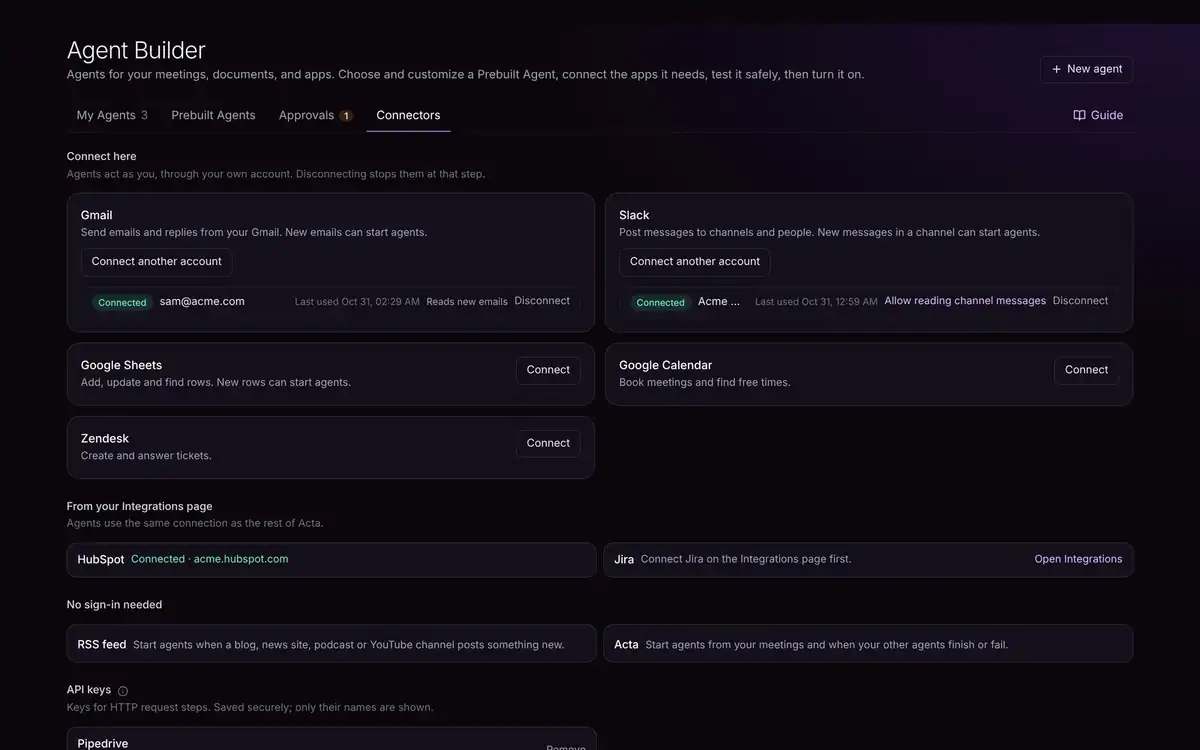
Connected apps show a green Connected label and the account they use.
Three kinds of apps
| How you connect | Apps | What to do |
|---|---|---|
| Connect here | Gmail, Slack, Google Sheets, Google Calendar | Click Connect, sign in to the app and allow access. You come back to Acta when it's done. |
| Connect with a key | Zendesk, Freshdesk | Click Connect and type your address (like acme.zendesk.com), your email and an API token from that app's settings. |
| From your Integrations page | HubSpot, Salesforce, Zoho, Jira, Asana | These use the same connection as the rest of Acta. If one isn't connected, click Open Integrations. |
| No sign-in needed | Acta, Calendar reminders, OneChat, RSS feed, Webhook, Chat | Nothing to do: they work straight away. |
Let agents read new emails or Slack messages
To start agents from new emails or new Slack messages, the app needs permission to read them. Next to that account, click Reads new emails or Allow reading channel messages and allow it.
Save an API key
The HTTP request step can call apps that have no steps here yet. Under API keys, save the app's key with a short name like Pipedrive. The key is stored securely and never shown again; steps only use its name.
Agents act as you
Emails come from your address and Slack messages from your account. Disconnect any app here at any time; agents that need it then stop at that step.
Troubleshooting
An agent says "Connect Gmail first"
The app isn't connected, or its sign-in expired. Open Connectors and click Connect (or Connect another account). For HubSpot, Jira and similar apps, use the Integrations page.
Can I connect two accounts of the same app?
Yes. Click Connect another account. Each step that uses the app shows which account it uses.