Build an agent in the editor
The editor is where you build and change an agent. It saves by itself as you work.
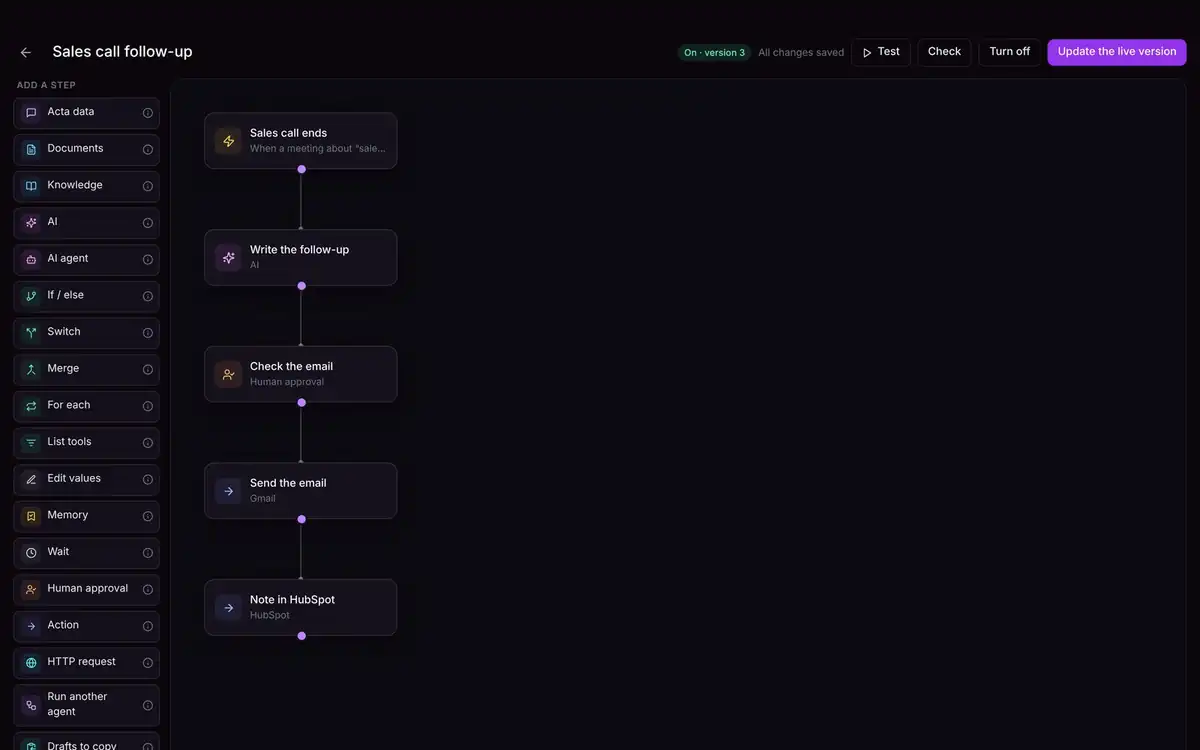
- Name (top left): click to rename the agent. The arrow takes you back to Agent Builder.
- Add a step (left): click a step type to add it below the selected step. The (i) next to each says what it does.
- Canvas (middle): your steps, top to bottom. Click a step to open its settings on the right. Drag a step to move it.
- Save status (top right): "All changes saved" when everything is kept. If it says Not saved, click Try again.
- Test: a practice run. Nothing is sent.
- Check: finds missing settings or steps that aren't connected, and says how to fix them.
- Turn on: start running it for real. When it's already on, this says Update the live version.
Add a step
- 1Click the step you want to add after.
- 2Click a step type under Add a step. Not sure which? Hover the (i) next to it, or see Every step, explained.
- 3Fill in its settings on the right. Give it a clear name, like "Write the follow-up".
Use answers from earlier steps
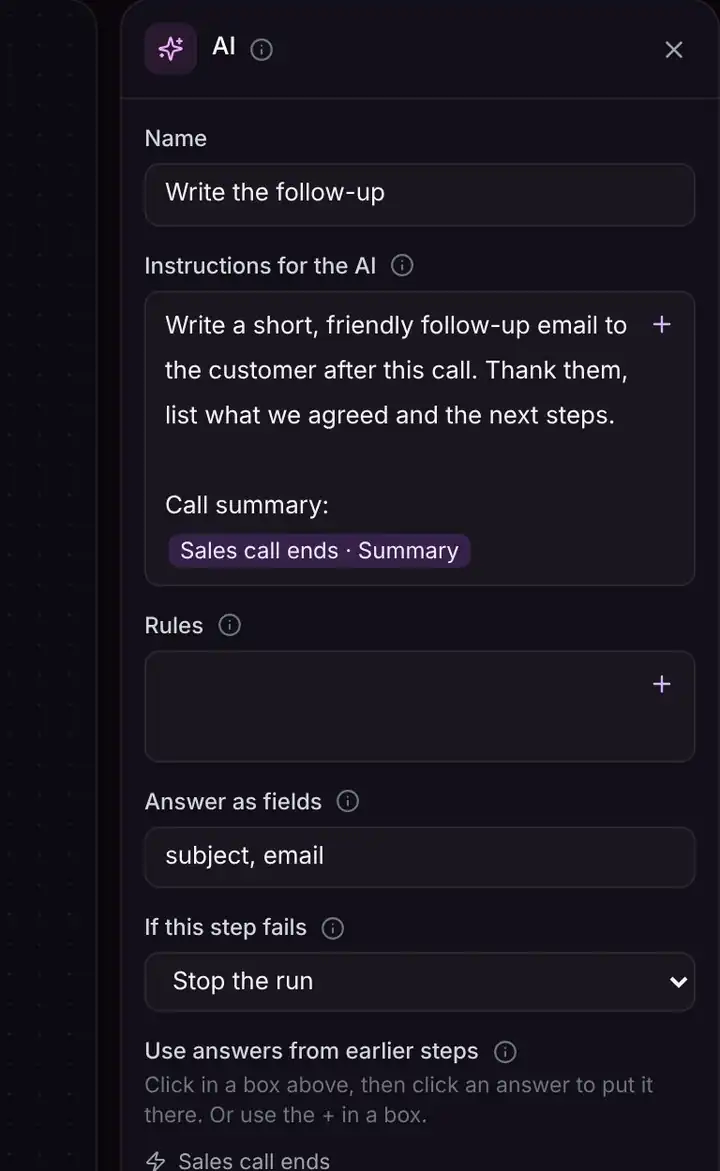
At the bottom of every step's settings, Use answers from earlier steps lists what earlier steps found, grouped by step. They show as purple tags like Sales call ends · Summary.
- 1Click inside a text box where you want the answer.
- 2Click the answer's tag, like Summary. It goes where your cursor is. Or click the + at the right of the box and pick one.
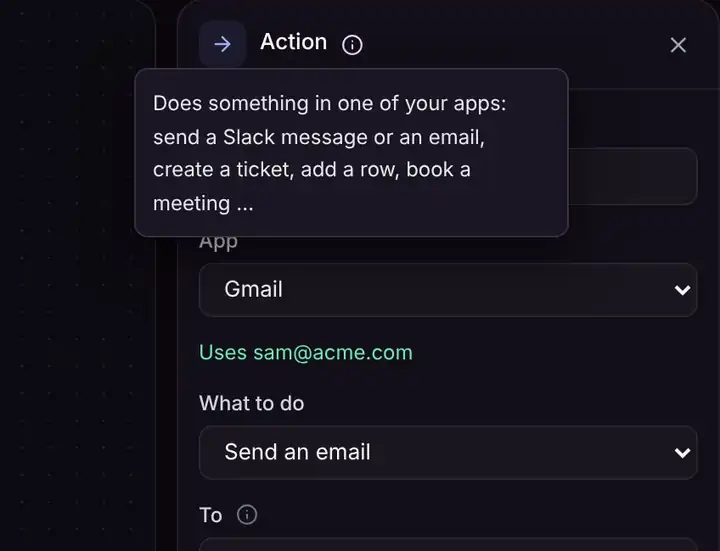
Read what a setting does
Connect steps
Steps run along the lines between them. To connect two steps yourself, drag from the small dot under a step onto the next one. To remove a line, click it and press Delete.
If a step fails
- Stop the run (default): nothing after it runs.
- Try again: useful when an app is briefly unavailable.
- Carry on: skip it and continue.
To delete a step, open it and click Delete this step at the bottom.
Edit an agent that's on
Changes to an agent that's on don't affect it until you click Update the live version. You can edit safely while it keeps working.
Troubleshooting
Check says something is missing
Click the step it names. Fields without "(optional)" must be filled, and every step except the first needs a line coming into it.
It says Not saved
Your changes couldn't be saved, usually because the connection dropped. Click Try again. If the agent has no name, give it one: agents need a name to save.