Test an agent and turn it on
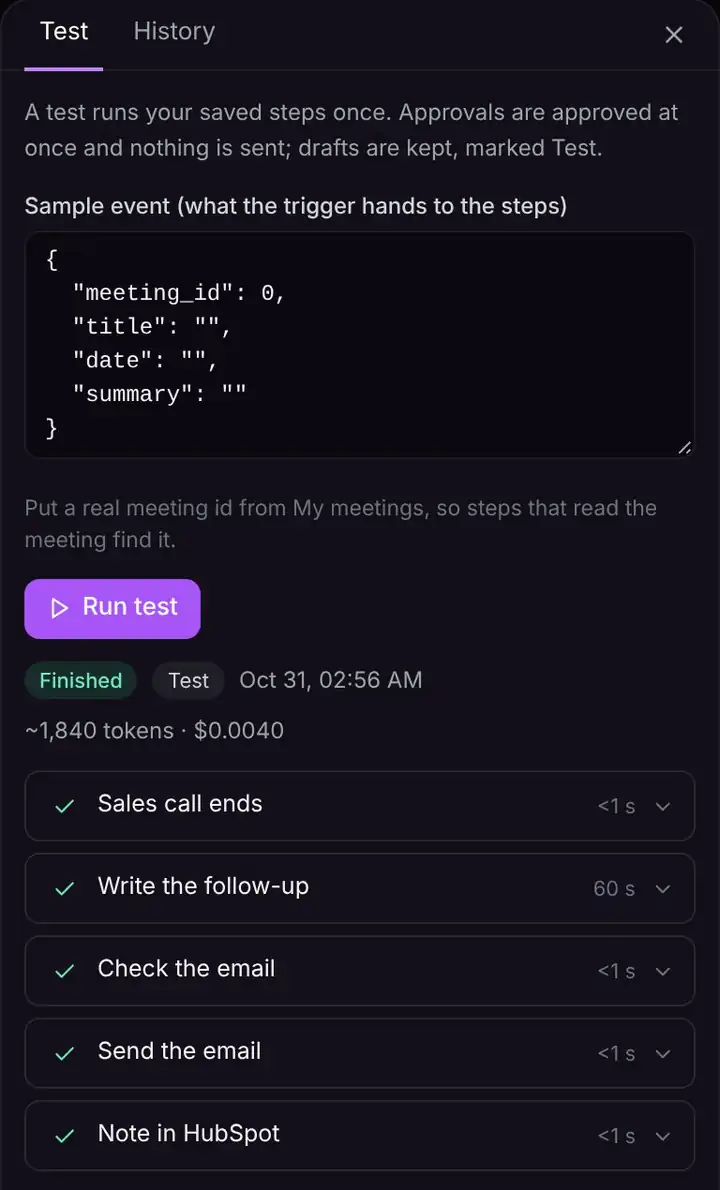
Always test before you turn an agent on. A test runs your steps once and shows each result. Nothing is sent: emails and messages are only shown, approvals pass by themselves, and drafts are marked Test.
Test an agent
- 1Click Test at the top of the editor.
- 2Fill in the sample event if you like: it's what the trigger would hand to the steps. For a meeting agent, put a real meeting ID from your meetings so steps can find it.
- 3Click Run test. Each step gets a tick when it worked. Click a step to see what it read and wrote. A red step says what went wrong.
Turn it on
Click Turn on in the editor. The label changes to On · version 1. Each time you click Update the live version later, the version number goes up.
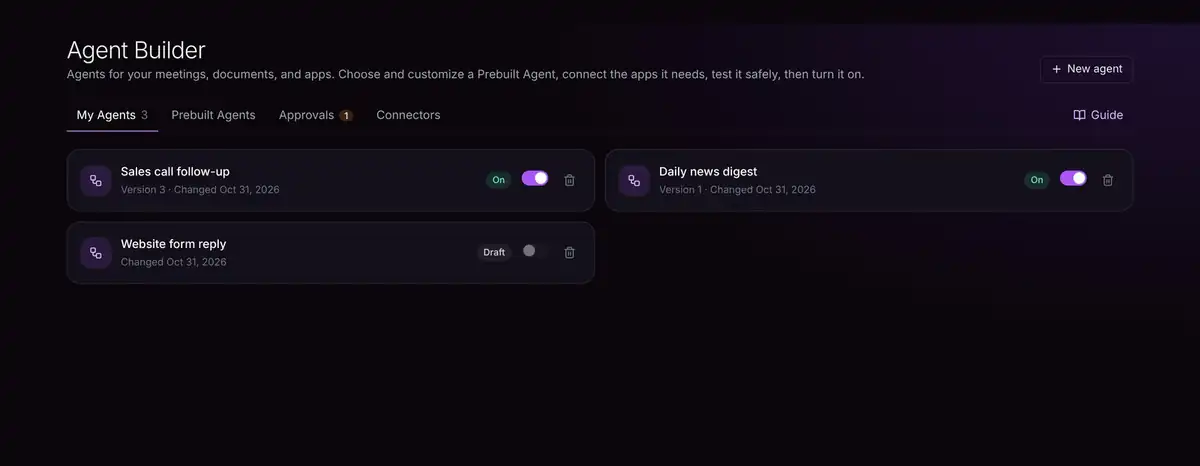
- In My Agents, use the switch to turn an agent on or off, click its name to open it, or use the bin to delete it.
- Turn off stops it from starting again. Runs already going finish.
- To see what it did, open the agent and click Test, then History.
Agents that work together
A Run another agent step hands work to an agent that starts with When another agent runs it. Split a big job into small agents that each do one thing.
Troubleshooting
A step failed during a real run
Open the agent, click Test, then History, and click the failed run. The red step says what happened. Fix it; for steps that depend on apps, set If this step fails to Try again.
Does a test use my apps?
Tests read from your apps when they need to, but never send, post or change anything. Approvals pass by themselves.