Get started with Agent Builder
An agent is a short list of steps that runs by itself. This guide shows the Agent Builder screens and walks you through your first agent. Nothing an agent does goes out until you turn it on.
What an agent is
Every agent has two parts:
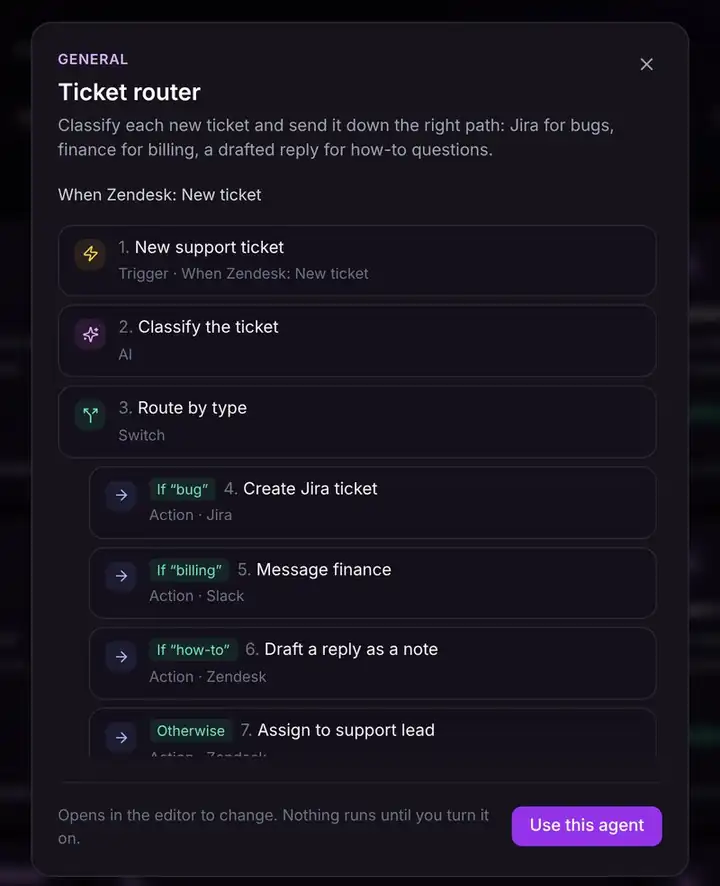
- A trigger: what starts it. For example "when a sales call ends", "every weekday at 8:00" or "when a new email arrives".
- Steps: what it does, one after the other. For example "AI writes a follow-up email", then "you check it", then "Gmail sends it".
Each step can use what earlier steps found or wrote: the AI step can read the meeting summary, and the email step can send what the AI wrote.
Words you will see
| Word | What it means |
|---|---|
| Prebuilt Agent | A ready-made agent for a common job. You copy it, then change what you like. |
| My Agents | The agents you have made. Each is Draft (not running yet), On or Off. |
| Trigger | What starts the agent: you, a time, a meeting, an email, a new row, a message. |
| Step | One thing the agent does. Steps are the boxes on the canvas. |
| Connector | Your sign-in to an app like Gmail or Slack, so agents can act there as you. |
| Test | A practice run. You see every step's result, and nothing is sent. |
| Turn on | The agent starts running for real, each time its trigger happens. |
| Approval | A pause where you check (and can edit) something before the agent sends it. |
| (i) icon | Hover or tap it next to any step or setting to read what it does. |
Find your way around
Open Agent Builder from the menu on the left in Acta.
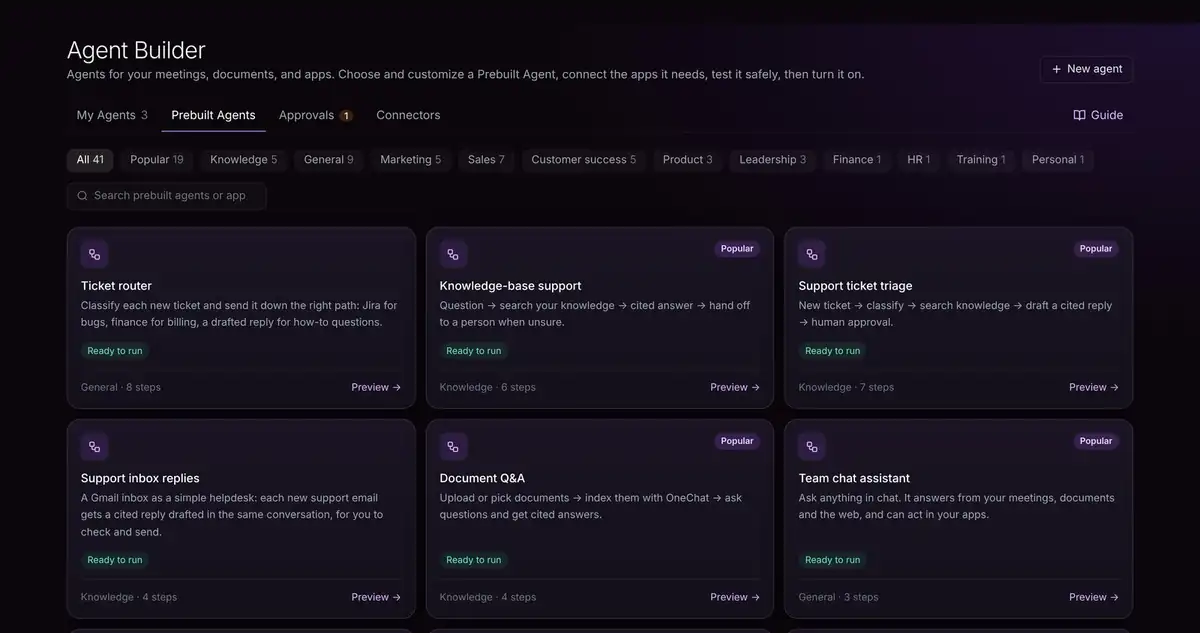
- My Agents: the agents you have made, with a switch to turn each on or off.
- Prebuilt Agents: ready-made agents. Filter by team (Sales, Customer success, HR…) or search by app.
- Approvals: what your agents are waiting for you to check. The number shows how many.
- Connectors: the apps your agents can use, like Gmail, Slack and Google Sheets.
- New agent (top right): describe an agent in your own words, or start from a blank one.
- Guide (right of the tabs): opens these guides.
A Drafts tab also appears once an agent has written posts for you to copy, like LinkedIn posts. Agents never post them; you copy and post them yourself.
Your first agent in 6 steps
- 1Open Prebuilt Agents and pick one. Use the team filters or the search box (try an app name like "Slack"). Cards marked Ready to run need nothing extra.
- 2Click Preview → to see its trigger and every step in order. A branch like If "bug" means that step only runs in some cases.
- 3Click Use this agent. A copy is saved to My Agents as a Draft and opens in the editor. Nothing runs yet.
- 4Click each step on the canvas. Its settings open on the right: fill in anything empty, like the Slack channel or who to email. Use the (i) icons when unsure.
- 5Click Test, then Run test. Every step shows a tick or what went wrong. Nothing is sent during a test.
- 6Click Turn on. From now on it runs each time its trigger happens.
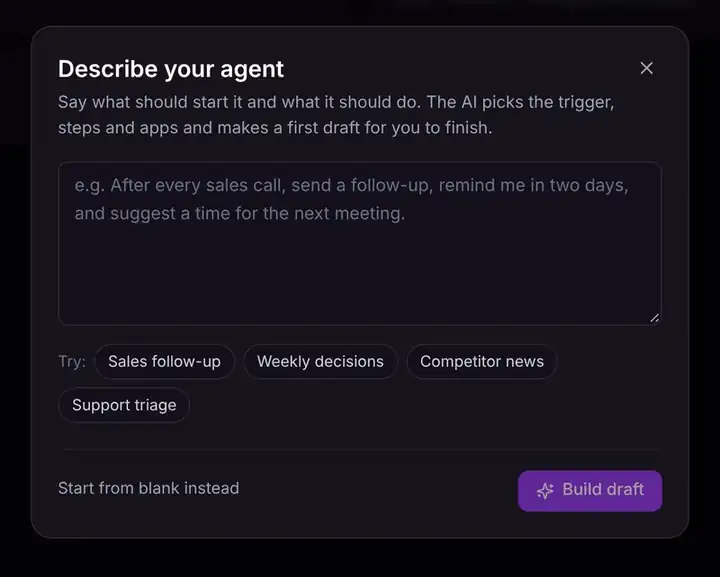
Describe an agent instead
Click New agent and say in a sentence what should start it and what it should do. The AI makes a first draft with the trigger, steps and apps, and lists what's left for you to finish. Or click Start from blank instead.
Nothing goes out while you build
Agents only run for real after you click Turn on. Tests never send emails or messages.
Troubleshooting
Do I need to know how to code?
No. You pick steps from a list and fill in plain settings. Every step and setting has an (i) icon that says what it does.
Which Prebuilt Agent should I start with?
Pick one for your team with Ready to run on its card: it needs no extra apps. Popular ones are marked Popular.